
Best overall: a standard clamshell Chromebook. Best for a bigger workspace: a large-screen Chromebook. Best for touch use: a convertible Chromebook. Best secondhand option: a refurbished Chromebook with updates remaining. This 2026 guide explains which type fits your day, without treating Windows laptops as Chromebooks.
- For Thestoretosee shoppers, a standard Chromebook is the best fit for everyday browser-based tasks.
- Searching cheap laptops chromebook? Check ChromeOS, update support, and your essential apps before choosing.
- Choose a large screen for desk use or a convertible Chromebook for touch use.
- Buy refurbished only after checking the exact model, condition, battery, and remaining updates.
Why this matters
A Chromebook runs ChromeOS, Google's operating system. A Windows laptop runs Windows. Both handle web browsing, but they do not run the same desktop software.
At Thestoretosee, keep that distinction clear when comparing practical laptops. The Windows models discussed below are alternatives—not Chromebook recommendations.
Choose the operating system your everyday tasks need before comparing screen sizes or storage. That prevents a basic buying mistake: choosing a device that cannot run your essential app.
What makes the best cheap Chromebook?
Use this short checklist for your 2026 shortlist:
- App fit: Check whether your essential tools work in a browser or have a compatible ChromeOS option.
- Update support: Find Google's automatic update expiration date for the exact model. This is when scheduled software updates end.
- Memory: Prefer 8 GB RAM for more breathing room when switching between browser tabs. RAM is the device's working memory.
- Storage: Treat 64 GB as a starting point for light, cloud-focused use—not a promise of enough space for your files.
- Screen and keyboard: Look for 1920 × 1080 pixels if you want a Full HD screen, then check keyboard layout and screen finish.
- Connections and condition: Confirm the ports you need and, for used devices, the battery and physical condition.
These are shopping targets, not specifications shared by every Chromebook. Match them to the exact configuration you select.
Chromebook types at a glance for 2026
| Rank and option | Best for | Standout feature | Key limitation |
|---|---|---|---|
| 1. Standard clamshell Chromebook | Everyday browsing and typing | Familiar laptop shape | Does not fold into a tablet |
| 2. Large-screen Chromebook | Mostly desk-based use | More room for text and windows | Takes up more bag and desk space |
| 3. Convertible Chromebook | Switching between typing and touch | Folding hinge for different positions | Touch support does not make every app tablet-friendly |
| 4. Refurbished Chromebook | Buyers comfortable checking a used device | Another route to a suitable configuration | Battery, condition, and update support need checking |
This is a ranking of buying options, not tested individual models. A model name alone does not establish its memory, screen, condition, or remaining support.
1. Standard clamshell Chromebook: best for everyday browsing
A standard clamshell Chromebook opens like a familiar laptop. Choose this shape when you mainly type emails, manage household tasks, browse websites, and work in online documents.
Best for: Everyday shoppers who want a keyboard-first computer.
Standard clamshell Chromebook pros:
- A straightforward shape for typing at a table.
- No need to choose around tablet features you will not use.
- A clear fit for browser-based routines.
Standard clamshell Chromebook cons:
- It does not fold into a tablet.
- Windows-only desktop software will not install as it does on Windows.
- Offline work depends on the apps and files you prepare.
Before choosing, list your essential websites and apps. Include the less obvious ones: a printer utility, a tax application, or software needed for a hobby.
Verdict: Buy a standard clamshell Chromebook if your essential tasks work in ChromeOS. It is the default choice here, not a substitute for checking compatibility.
2. Large-screen Chromebook: best for a home desk
A large-screen Chromebook gives you more physical space for reading and arranging windows. It suits a device that spends most of its time on a kitchen table or home desk.
Best for: Shoppers who prioritize viewing space over easy carrying.
Large-screen Chromebook pros:
- More room to view documents and websites.
- A useful layout for comparing information side by side.
- Less need to choose a compact screen solely for portability.
Large-screen Chromebook cons:
- A bigger footprint takes more space in a bag.
- Screen size alone does not guarantee sharp text.
- A larger display does not establish battery life or speed.
Check resolution as well as size. A bigger screen with the same pixel count spreads those pixels across more space; it does not automatically show finer detail.
Verdict: Buy a large-screen Chromebook for mostly stationary use; skip it if easy carrying matters more.
3. Convertible Chromebook: best for touch use
A convertible Chromebook has a hinge that lets the screen fold back for different positions. It makes sense when you genuinely want to switch between typing and tapping.
Best for: Reading, touch-based browsing, and watching video between keyboard tasks.
Convertible Chromebook pros:
- Different positions suit different activities.
- Touch gives you another way to interact with supported apps.
- The keyboard remains part of the device.
Convertible Chromebook cons:
- A folded laptop is not the same physical experience as a standalone tablet.
- App layouts vary in touch mode.
- Stylus support and an included pen are separate things to verify.
Do not choose a convertible just because the hinge looks useful. Think about where you will use it and whether you actually want to hold a folded laptop.
Verdict: Buy a convertible Chromebook if touch use is part of your routine; otherwise, choose the simpler clamshell.
4. Refurbished Chromebook: best for careful secondhand buyers
A refurbished Chromebook is a previously owned device offered for resale after whatever checks or work the seller describes. The word alone does not establish a shared testing standard.
Best for: Buyers willing to inspect condition and support details before deciding.
Refurbished Chromebook pros:
- Lets you consider previously owned configurations.
- Gives usable hardware another owner.
- Can suit basic browsing when its specifications and support meet your needs.
Refurbished Chromebook cons:
- Battery wear varies between devices.
- Cosmetic grades mean different things between sellers.
- Remaining updates depend on the exact model, not your purchase date.
For a refurbished purchase in 2026, check the model's update expiration before getting attached to its appearance. Also confirm that a school or business no longer manages it; organization management can restrict how you use the device.
Verdict: Buy only after confirming condition, account setup, and remaining updates; skip listings that leave those checks unresolved.
Match the Chromebook to your day
Choose the shape around your main activity—not a feature you might use once.
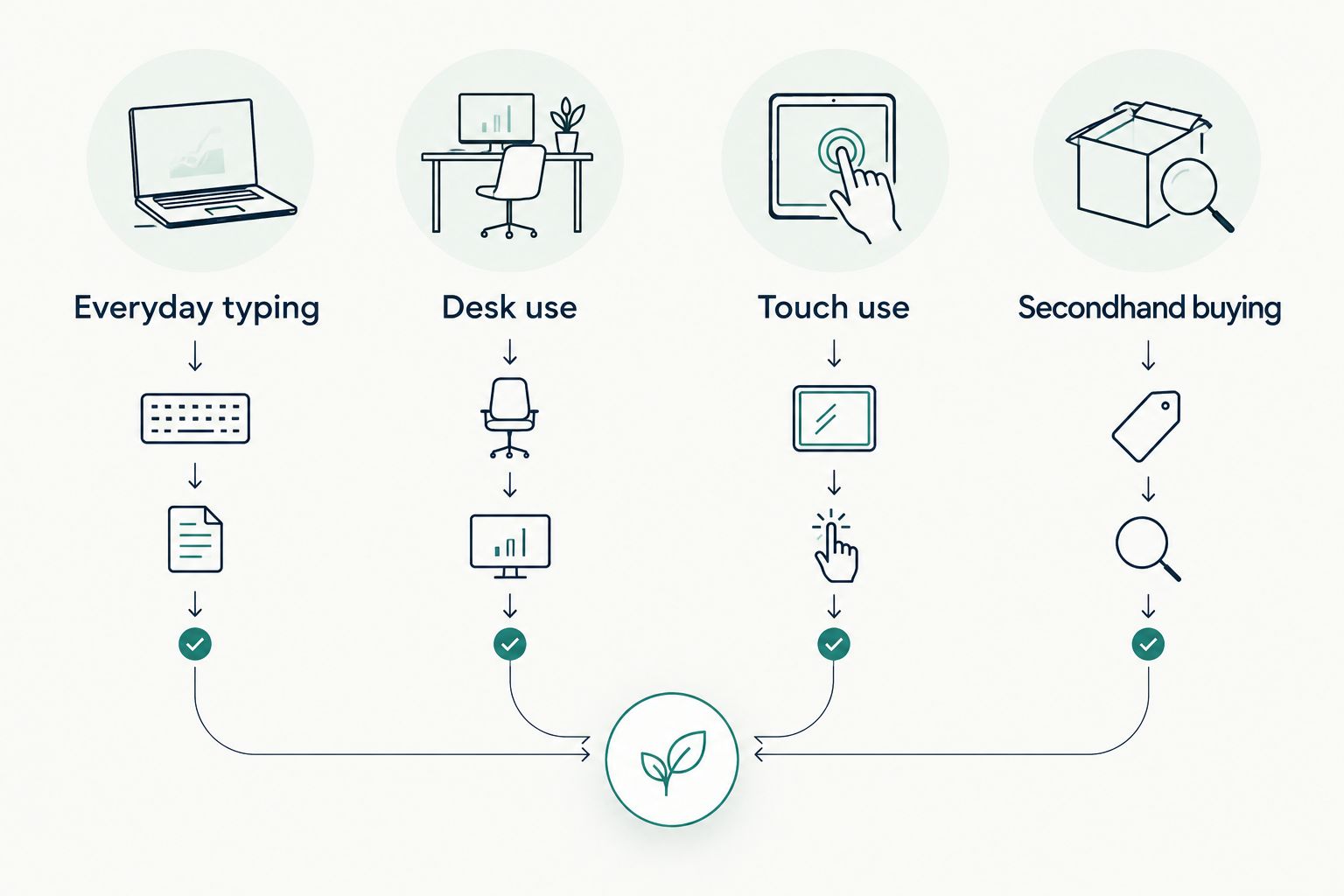
- Everyday typing: Start with a standard clamshell.
- Desk use: Consider a larger screen.
- Touch use: Consider a convertible.
- Secondhand buying: Put condition and updates first.
Keep memory and storage separate when comparing listings. More storage holds more files; more RAM gives active apps more working space. One does not replace the other.
When a Windows laptop is the better choice
Choose Windows when an essential task requires Windows software. A browser-based version of an app is not automatically a complete replacement for its desktop version.
Thestoretosee lists an Acer Aspire Go 15. Its listing identifies Windows 11, an Intel Core i5 processor, 8 GB RAM, a 512 GB SSD, and a 15.6-inch Full HD display. An SSD is storage for your apps and files.
Best for: Shoppers comparing a conventional Windows laptop with a Chromebook.
- Pros: A listed Windows configuration; built-in keyboard; local storage identified in the listing.
- Cons: It is not a Chromebook; the listed specifications do not establish real-world battery life or performance.
Verdict: Consider the Acer Aspire Go 15 if Windows compatibility is your deciding requirement. Check the selected configuration and your software's requirements before ordering.
| Choice | Best for | Main trade-off |
|---|---|---|
| Chromebook | Browser-first routines | Windows desktop applications do not install normally |
| Acer Aspire Go 15 | Tasks requiring compatible Windows software | Its listed specifications alone do not prove suitability for every app |
How these options are ranked
The order prioritizes everyday app fit, useful screen space, input style, and ownership checks. A standard clamshell comes first because tablet features and secondhand inspections are not necessary for every shopper.
Thestoretosee shoppers should compare the selected configuration, not assume that every device in a product family has identical specifications. This 2026 guide makes no model-level speed, battery-life, or lowest-cost claim.
Which Chromebook should you choose?
Choose a standard clamshell Chromebook unless you have a clear reason to choose another shape. Move to a larger screen for desk use, a convertible for regular touch use, or refurbished only when the condition and support checks are clear.
Before ordering, confirm:
- Your essential apps work.
- The exact model has suitable remaining updates.
- RAM and storage match the selected configuration.
- The screen, ports, and keyboard suit your routine.
- Any required charger or accessories are explicitly included.
FAQ
What's the best cheap Chromebook for everyday use?
A standard clamshell Chromebook is the best starting point for everyday browser-based tasks. Check your essential apps, the exact configuration, and remaining updates before choosing a model.
Is a Chromebook the same as a cheap Windows laptop?
No. A Chromebook runs ChromeOS, while a Windows laptop runs Windows. Choose Windows if an essential application requires its Windows desktop version.
Is 8 GB RAM enough for a Chromebook?
8 GB RAM is a practical shopping target for everyday browser use. It does not guarantee speed; your apps, processor, and workload also matter.
Can I use a Chromebook without internet?
Yes, supported apps and downloaded files can work offline. Set up offline access in advance and check the specific tools you need.
Should I buy a refurbished Chromebook in 2026?
Buy a refurbished Chromebook only after checking its condition, battery, management status, and update expiration. A recent purchase date does not reset the model's support period.
Does adding a keyboard turn an Android tablet into a Chromebook?
No. An Android tablet with a keyboard still runs Android, not ChromeOS. Check the operating system rather than relying on a laptop-like appearance.
One last thing
A year in a listing title does not establish when a Chromebook's updates end. For a 2026 purchase, check Google's update information against the exact model—not the headline or the date you buy it.
Shop technology with your app checklist beside you. The right everyday computer is the one that handles your actual routine.