
Best overall for mixed devices: a dual USB-A/USB-C micro SD USB card reader. Best for an older computer: USB-A; best for a compatible phone or tablet: USB-C. These 2026 picks rank reader types, so you can choose the right connection without guessing at model specifications.
- Thestoretosee’s micro SD USB card reader recommendation for mixed devices is a dual USB-A/USB-C design.
- Choose a USB-A reader for a computer with rectangular USB ports.
- Choose a USB-C reader for a compatible phone or tablet; confirm external storage support first.
- Check microSD card capacity support and connector clearance before choosing a reader.
Why this matters
A memory card reader connects your microSD card to another device so you can copy files. The right plug is only the first check: your device also needs to recognize the reader and the card.
For Thestoretosee shoppers comparing practical tech accessories, start with the device you already own. You can shop technology at Thestoretosee, but use the checks below before choosing any reader.
What makes the best micro SD USB card reader?
Use these checks for your 2026 shortlist:
- Matching connector: USB-A is the familiar rectangular plug. USB-C is the smaller, rounded, reversible plug.
- Card support: Check that the reader accepts microSD directly and supports your card’s capacity.
- Device compatibility: Confirm support for your computer, phone, or tablet—not just the shape of its port.
- Comfortable fit: Leave room for nearby plugs and any protective case around your device.
- Useful extras: Choose an additional full-size SD slot only if you use full-size SD cards.
A memory card stores files. A reader gives another device access to those files. You need both; a reader does not add storage by itself.
Micro SD USB card readers at a glance
These are reader formats, not tested model recommendations. Match the format to your setup, then check the exact listing before buying.
| Reader type | Best for | Standout benefit | Key limitation |
|---|---|---|---|
| Dual USB-A/USB-C reader | Moving cards between different devices | Two connector types in one reader | Both plugs still need room to fit |
| USB-A reader | An older computer with USB-A ports | Direct connection without a separate adapter | Does not plug directly into USB-C-only devices |
| USB-C reader | A compatible phone or tablet | Direct connection to a USB-C port | USB-C alone does not guarantee storage compatibility |
| Cabled SD/microSD reader | Households using both card sizes | Separate slots for different card formats | Adds a cable to your setup |
The plug determines whether a reader fits. It does not establish transfer speed, card support, or whether your phone can open the files.
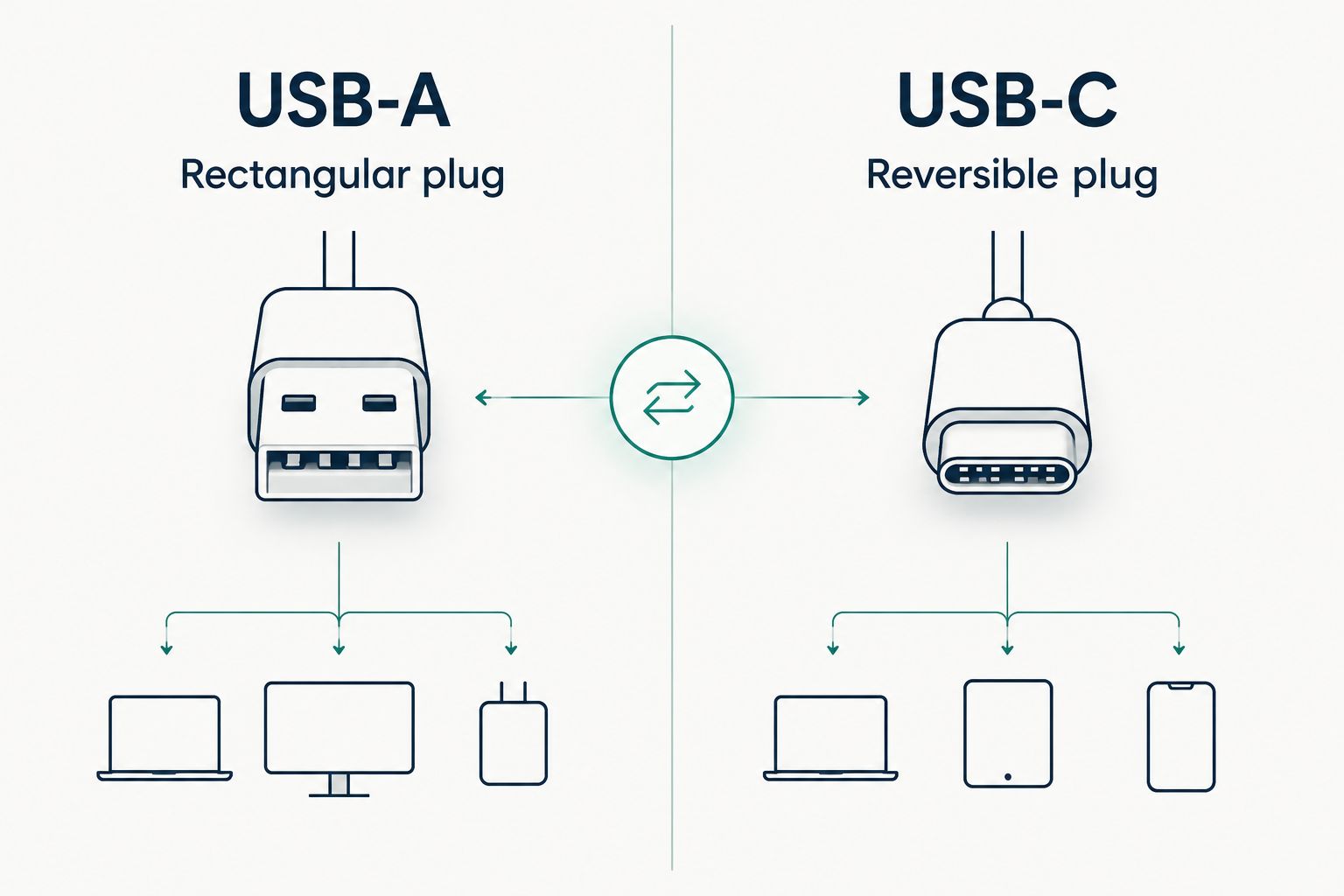
1. Dual USB-A/USB-C reader: best for mixed devices
A dual-connector reader has both USB-A and USB-C connections. It makes sense when you move files between a computer with USB-A ports and another compatible device with USB-C.
Best for: Sharing one reader across different devices.
Dual USB-A/USB-C reader pros:
- Covers both connector shapes.
- Avoids a separate plug adapter when a direct connection works.
- Keeps your card-transfer setup in one accessory.
Dual USB-A/USB-C reader cons:
- A wide body can block a neighboring port.
- The second connector adds no benefit if you only use one port type.
Check whether caps, swiveling parts, or the reader body interfere with your device’s case. A connector that looks right still needs enough clearance to seat fully.
Verdict: Buy a dual USB-A/USB-C reader if you regularly switch between both port types. It is the default choice for a mixed-device setup in 2026—not a reason to replace a working single-connector reader.
2. USB-A reader: best for an older computer
A USB-A microSD reader plugs into a computer’s rectangular USB port. It is a straightforward choice when your main task is copying photos or documents to that computer.
Best for: A computer with an accessible USB-A port.
USB-A reader pros:
- Connects directly to a matching computer port.
- Avoids an unnecessary second connector.
- Works as a dedicated accessory for one computer setup.
USB-A reader cons:
- Needs an adapter for a USB-C-only device.
- A rigid reader can be awkward in a crowded row of ports.
Check where the port sits. A reader plugged into the back of a desktop is less convenient to reach than one connected at the front.
Verdict: Buy a USB-A reader if your computer has USB-A and you do not need phone or tablet use.
3. USB-C reader: best for a compatible phone or tablet
A USB-C microSD reader connects directly to a matching USB-C port. For phone and tablet use, check that the device supports external USB storage and the card’s file format—the system used to organize its files.
Best for: Transferring files through a compatible USB-C phone or tablet.
USB-C reader pros:
- Fits a matching port without a USB-A adapter.
- Uses a reversible connector.
- Lets a supported device access a removable card.
USB-C reader cons:
- A matching port does not guarantee compatibility.
- The plug or housing can interfere with a protective case.
Look for device-specific instructions for opening external storage. You also need an app that can open the files themselves; detecting a card does not mean every photo or video format will play.
Verdict: Buy a USB-C reader after confirming external-storage support for your exact device. For a 2026 purchase, connector shape is a starting point, not proof of compatibility.
4. Cabled SD/microSD reader: best for mixed card sizes
A cabled reader connects through a short lead rather than hanging directly from the port. Choose a version with separate SD and microSD slots if your household uses both card sizes.
Best for: Moving files from both full-size SD and microSD cards.
Cabled SD/microSD reader pros:
- Accepts both card formats when separate slots are specified.
- Keeps the reader body away from neighboring ports.
- Gives you flexibility over where the card slot sits.
Cabled SD/microSD reader cons:
- Adds a cable to carry and manage.
- Two slots do not necessarily support simultaneous use.
Check the computer-end connector separately. A cabled reader can use USB-A or USB-C, and the cable does not establish its transfer speed.
Verdict: Buy a cabled SD/microSD reader if you use both card sizes or need better port clearance. Skip the extra slot if every card you own is microSD.
Check your memory card before ordering
For a reader purchase in 2026, match the card standard as well as the plug. The SD Association defines microSDHC capacities as over 2 GB through 32 GB, and microSDXC capacities as over 32 GB through 2 TB.
That means a 64 GB card is microSDXC. A reader described only as supporting microSDHC is not the right match for it.
Use this quick shopping checklist:
- Read the card label: Find the capacity and the microSDHC or microSDXC marking.
- Check the reader listing: Look for explicit support for that card standard and capacity.
- Check the receiving device: Confirm it supports the card’s file format.
- Check the physical fit: Allow space around the port and your device’s case.
If you are also choosing storage, the SanDisk micro SD card listing is separate from a reader. Check the selected card option rather than treating every capacity mentioned in a listing as the same item.
How the reader types rank
This guide prioritizes connector fit, device compatibility, card support, and practical handling. It does not assign model-level speed scores or claim hands-on testing.
A dual-connector reader takes the default slot because it covers both USB-A and USB-C connections. The other types win when your setup has a clearer need: one computer, a compatible mobile device, or two card sizes.
Which micro SD USB card reader should you choose?
Choose a dual USB-A/USB-C reader if you are undecided and use both connections. Choose a single-connector reader if it already matches every device you use.
Thestoretosee’s practical buying rule is simple: check the plug, card standard, and device support before adding features. More slots and connectors only help when you use them.
FAQ
What’s the best micro SD USB card reader for everyday use?
A dual USB-A/USB-C reader is the best starting point when you use devices with both port types. A single-connector reader is enough when all your devices share the same connection.
Is a USB-C microSD reader better than USB-A?
USB-C is better only when it matches your device and your needs. Connector shape alone does not establish transfer speed or card compatibility.
Can I use a microSD card reader with my phone?
You can use a reader when your phone supports external USB storage and the card’s file format. Check your exact phone model and make sure the connector fits through its case.
Will a microSDHC reader work with a 64 GB card?
Choose a reader that explicitly supports microSDXC for a 64 GB card. Support for microSDHC alone does not establish microSDXC compatibility.
Do I need an SD adapter with a microSD reader?
You do not need a full-size SD adapter when the reader has a dedicated microSD slot. An SD-only reader needs a compatible adapter to hold the smaller card.
Will a faster reader make every transfer faster?
A faster reader does not guarantee faster transfers. The memory card, USB connection, receiving storage, and files being copied all affect the result.
Can a reader use its SD and microSD slots together?
Only use both slots together when the reader’s specifications explicitly support simultaneous access. Having two slots does not establish that capability.
One last thing
Copy first. Check the copy. Then delete. Open the transferred files before removing the originals, and eject the card before unplugging the reader.
A successful connection is not the same as a checked backup. Keep another copy of files you cannot replace.