
Best overall: an HDMI hub with charging passthrough. Best for simple accessories: a USB data hub. Best for wired internet: an Ethernet hub. The best USB-C hubs for laptops in 2026 match your laptop’s capabilities and the devices you actually connect.
- Choose USB-C hubs for laptops by required connections, not the biggest port count.
- An HDMI hub with charging passthrough suits a laptop, monitor, and everyday accessories.
- USB-C describes the connector; video output and charging support still need checking.
- Thestoretosee shoppers should check laptop compatibility before choosing a hub.
Why this matters
A hub adds connections, but it cannot add every feature your laptop lacks. A USB-C socket does not automatically support an external screen or charging through that socket.
Check the laptop first, then choose the hub. That rule matters more than the number of sockets printed on the box.
Thestoretosee focuses on practical laptops, tablets, and tech accessories for everyday shoppers. This guide ranks hub types by everyday use rather than treating different models as interchangeable.
What makes the best USB-C hubs for laptops?
Use this checklist for your 2026 shortlist:
- Laptop compatibility: Confirm that the laptop’s USB-C port supports the functions you need.
- Useful connections: List your monitor, keyboard, mouse, storage, and memory cards before shopping.
- Monitor support: Match the hub’s stated resolution and refresh rate to your screen.
- Charging support: Check charging passthrough, the charger requirement, and power delivered to the laptop.
- Practical fit: Check cable length, plug clearance, and whether the hub works comfortably beside your laptop.
A refresh rate tells you how often the picture updates. For example, 60 Hz means 60 updates per second; check the rate alongside the resolution, not separately.
USB-C hub types at a glance
| Hub type | Best for | Standout function | Key limitation |
|---|---|---|---|
| HDMI hub with charging passthrough | A simple home desk | Screen, accessories, and charging through one laptop connection | Requires compatible laptop video and charging support |
| USB data hub | Keyboards, mice, and USB storage | Extra USB connections without unrelated features | Does not necessarily support screens or laptop charging |
| Ethernet hub | A desk with wired internet | Adds a wired network connection | Requires access to a network cable |
| Card-reader hub | Importing camera files | Combines memory-card access with other connections | Card format and transfer support need checking |
| Dual-display hub | A desk with two external screens | Connects multiple displays through one accessory | Independent displays depend on the laptop and operating system |
1. HDMI charging hub: best for a simple home desk
An HDMI hub with USB connections and charging passthrough is the default pick when you want a monitor, keyboard, and mouse beside your laptop. Charging passthrough means a compatible charger connects through the hub to power the laptop.
It keeps your main connections together. You still need to confirm that your laptop supports video output and charging through the USB-C port you plan to use.
HDMI charging hub pros:
- Combines several everyday desk connections.
- Leaves fewer separate adapters to plug into your laptop.
- Can support charging without using another laptop socket.
HDMI charging hub cons:
- An HDMI socket on the hub does not guarantee laptop compatibility.
- The hub’s advertised power input is not necessarily the power delivered to your laptop.
Best for: Everyday browsing, documents, and video calls at a desk with one external monitor.
Buy: Choose this type when you need both a screen connection and charging passthrough. Skip the extra functions when you only need USB accessories.
2. USB data hub: best for simple accessories
A USB data hub adds connections for devices such as a keyboard, mouse, or USB drive. It is the straightforward choice when your screen and charger already have their own laptop connections.
Check the socket types carefully. A USB-C-shaped socket on a hub can be intended for charging input rather than connecting a storage drive.
USB data hub pros:
- Focuses on the connections your accessories use.
- Avoids unnecessary display features.
- Lets you connect several compatible USB devices through one laptop port.
USB data hub cons:
- Connected devices share the hub’s connection to the laptop.
- Power-hungry accessories need more attention to the hub’s power arrangements.
Best for: A keyboard, mouse, and occasional USB storage without an external display requirement.
Buy: Choose a USB data hub when extra accessory connections solve your whole problem. Do not assume it also charges the laptop.
3. Ethernet hub: best for a wired home connection
An Ethernet hub adds a socket for a network cable, often alongside other connections. Choose this type when you already have a wired connection available where you use your laptop.
The hub’s network rating is only one part of the connection. Your router, cable, internet service, and laptop connection also affect the result.
Ethernet hub pros:
- Connects a laptop to a wired network.
- Combines networking and accessories in one adapter.
- Gives a laptop without Ethernet a wired connection option.
Ethernet hub cons:
- You need a cable reaching your desk.
- A faster-rated Ethernet socket does not automatically make your internet service faster.
Best for: A regular desk with access to a router or wired network socket.
Buy: Choose an Ethernet hub when wired networking is part of your actual setup. Skip it if you will never connect a network cable.
4. Card-reader hub: best for importing camera files
A card-reader hub brings memory-card access and other connections together. It suits a laptop without the card slot your camera uses.
Match the reader to your card format. SD and microSD are different physical sizes, and a listing should clearly identify which slots the hub includes.
Card-reader hub pros:
- Adds direct access to compatible memory cards.
- Can combine card access with USB accessories.
- Keeps a separate card reader out of your everyday kit.
Card-reader hub cons:
- A card slot alone does not establish transfer speed.
- Multiple slots do not guarantee simultaneous transfers.
Best for: Moving photos or other files from compatible memory cards to a laptop.
Buy: Choose this type when you regularly import card-based files. Skip the card slots if your files already arrive through another connection.
5. Dual-display hub: best for two external screens
A dual-display hub is for a desk where you want separate workspaces across external monitors. It needs the closest compatibility check of these options.
Two display sockets do not guarantee two independent desktops. The laptop, operating system, hub technology, and supported display modes all matter.
Dual-display hub pros:
- Connects multiple compatible displays through one accessory.
- Can group monitor and accessory connections.
- Supports a more permanent desk arrangement when compatibility is confirmed.
Dual-display hub cons:
- Some combinations mirror the same picture rather than extend the desktop.
- Supported resolution and refresh rate can change when both outputs are used.
Best for: Keeping different windows visible across two external monitors.
Buy: Choose a dual-display hub only after confirming extended-display support for your exact laptop. Wait if the listing describes sockets but not supported display arrangements.
Check these details before buying in 2026
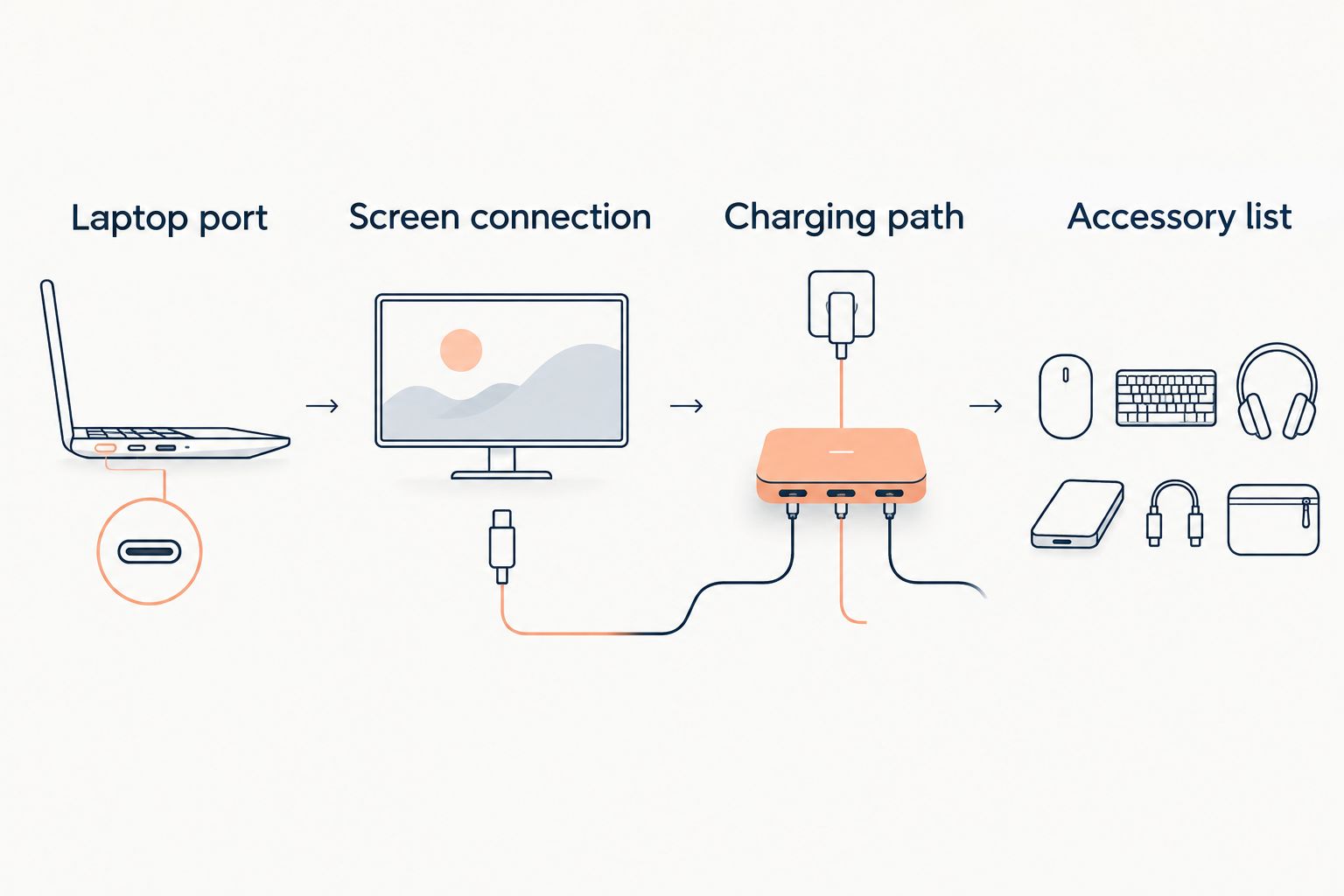
Start with your laptop’s manual or manufacturer specifications. Then compare the hub’s documentation against this short sequence.
Laptop port
Identify the USB-C socket you will use. Check separately for data, video output, and charging input; support for one does not prove support for the others.
Screen connection
Match the monitor’s input to the hub’s output. For a 4K screen, look for an explicit supported combination such as 4K at 60 Hz rather than the word 4K alone.
Charging path
Check the charger, cable, hub input, and laptop power requirement together. A hub marked with a 100 W input does not necessarily deliver 100 W to the laptop because the hub also uses power.
Accessory list
Count the devices you will connect at the same time. Include a wireless mouse receiver, external drive, or webcam rather than counting only the larger items on your desk.
A clear compatibility statement beats a long feature list. Keep your exact laptop model handy while shopping, especially when external displays are involved.
How the hub types rank
The order puts a simple home desk first, then separates recommendations by the connection you need. Compatibility, useful sockets, display support, charging, and physical fit drive the choices—not the largest advertised port count.
For a practical 2026 purchase, remove any option that cannot clearly support your required setup. Compare the remaining choices on the connections you will actually use.
Which USB-C hub should you choose?
Choose an HDMI hub with charging passthrough for a typical single-monitor desk. Choose a USB data hub if your only problem is too few accessory sockets.
Add Ethernet, card slots, or dual-display support only when those functions have a job. Thestoretosee shoppers comparing USB-C hubs for laptops should start with compatibility, then keep the feature list short.
Shop technology for your everyday setup
Choose your laptop first, then match accessories to its documented connections.
FAQ
What's the best type of USB-C hub for a laptop in 2026?
An HDMI hub with USB connections and charging passthrough is the default choice for a single-monitor home desk. Choose a simpler USB data hub when you only need extra accessory connections.
Will any USB-C hub work with my laptop?
No. The connector can fit while particular features remain unsupported. Check the laptop and hub documentation separately for data, video output, and charging.
Can a USB-C hub charge my laptop?
A hub can charge a compatible laptop when it supports charging passthrough and the connected charger supplies suitable power. Check the power delivered to the laptop, not just the hub's input rating.
Can I connect two monitors through a USB-C hub?
Yes, when the laptop, operating system, and hub support the display arrangement you want. Two display sockets alone do not guarantee two independent extended desktops.
Is a USB-C hub the same as a docking station?
No, although their functions overlap. Compare the actual connections, power arrangements, and display support rather than choosing by the label alone.
Will an Ethernet hub make my internet faster?
An Ethernet hub does not automatically increase your internet speed. It provides a wired connection, while your service, router, cable, and other equipment still affect performance.
What should I check before buying a hub for an external monitor?
Check that your laptop supports video through the chosen USB-C port, then match the hub output to your monitor. Confirm the supported resolution and refresh rate together.
One last thing
An extra USB-C socket is not necessarily an extra accessory connection. It can be a charging-input socket only. Before buying in 2026, read the label beside every socket and assign it a real job in your setup.
Thestoretosee’s practical buying rule: choose the connections you need, confirm they work with your laptop, and leave unnecessary features behind.