
Instead of guessing which iPad Air case fits, identify your tablet, match the case’s model option, and check the fit before everyday use. This 2026 workflow takes you from a bare iPad Air to a case that leaves the camera, buttons, and charging port usable.
- Choose an iPad Air case by exact model, not screen size alone.
- Thestoretosee suits everyday shoppers looking for practical tablets and tech accessories.
- Check the selected case option, camera opening, buttons, and charging access before keeping the case.
- Choose a folio for propping, a shell for simpler handling, or a sleeve for carrying.
Why this matters
The right case starts with the right iPad Air model. Similar screen sizes do not establish compatibility. A case also needs the correct shape, openings, and button placement.
When browsing iPad case options, check the selected option rather than relying on the long product title. A title listing several iPads does not mean one case fits every model named.
For a 2026 purchase, your tablet’s identity matters more than the year printed in a listing. A new listing can still describe a case intended for an older device.
Before you start
Have these ready before choosing or fitting a case:
- Your unlocked iPad Air: You need access to Settings to identify it. No separate shopping account is needed for the identification steps.
- Your everyday accessories: Keep your charging cable, screen protector, and any keyboard or stylus nearby for the final checks.
- The exact case option: Multi-model listings require extra care. Match the selected option to your tablet; do not assume the product photo shows that option.
The easy-to-miss problem: screen size is not a model number. Labels such as 10.5-inch, 10.9-inch, and 11-inch describe screen sizes, not interchangeable case fittings.
Tablet identification
Start here even if you remember buying an iPad Air. The model information gives you a firmer match than appearance alone.
- Open Settings.
- Select General, then About.
- Read Model Name and write down the full name shown.
- Find Model Number. Tap its value if necessary to reveal the model identifier beginning with A.
- Keep that identifier alongside the model name while you shop.
If the iPad does not turn on, look for the model number on the back of the device. Apple’s model-identification information can help you match that number to the correct iPad.
Expected result: You have a specific iPad Air identity, not just a screen measurement or a memory of when you bought it.
Do not turn the purchase date into the model name. An iPad bought in 2026 is not automatically a model introduced in 2026.
Case selection
Choose fit first, then choose how you want to use the tablet. Color and finish come after those checks.
- Find your exact iPad Air model in the case’s compatibility details.
- Check any model identifiers the listing provides against your own.
- Select the matching model option before choosing a color.
- Recheck the selected option in your order summary. Some listings combine several device choices on one page.
- Check whether the design supports the accessories and viewing position you need.
Expected result: The selected case option explicitly matches your iPad Air, and its design suits your normal routine.
Pick the case style for your main use
These are design trade-offs, not claims about a particular product. Check the individual listing for its construction and features.
| Case style | Best for | Main advantage | Main limitation |
|---|---|---|---|
| Folio case | Reading or watching at a table | A folding cover can provide a viewing stand when designed for it | Folded covers add material to hold behind the tablet |
| Back shell | Holding the tablet while browsing | Leaves the screen uncovered during use | Does not cover the screen when carried |
| Sleeve | Carrying the tablet between places | Encloses the tablet when it is put away | Usually needs removing before you use the screen |
| Keyboard case | Frequent typing | Combines a keyboard and tablet support when designed for both | Adds bulk and requires exact compatibility checks |
Choose a folio if propping the screen is your priority; choose a shell if handling matters more. A sleeve serves a different job: carrying, rather than supporting the tablet during use.
Thestoretosee focuses on practical tablets and tech accessories. Apply the same practical test here: buy the design that solves your daily problem, not the one with the longest feature list.
Check claims that affect your routine
Before choosing a case, look for clear answers to these questions:
- Viewing: Does the case show the standing position you want?
- Typing: Does the cover remain stable when you touch the screen?
- Stylus use: Does the design leave the required attachment or charging area accessible?
- Screen protection: Will the case edge work with your existing screen protector?
- Carrying: Does the closed case fit your usual bag or sleeve?
Do not infer drop protection, water resistance, or keyboard compatibility from appearance. Those features need explicit product information.
Case installation and fit checks
Fit the case on a clean, stable surface. Follow the case maker’s instructions where the design requires a particular insertion order.
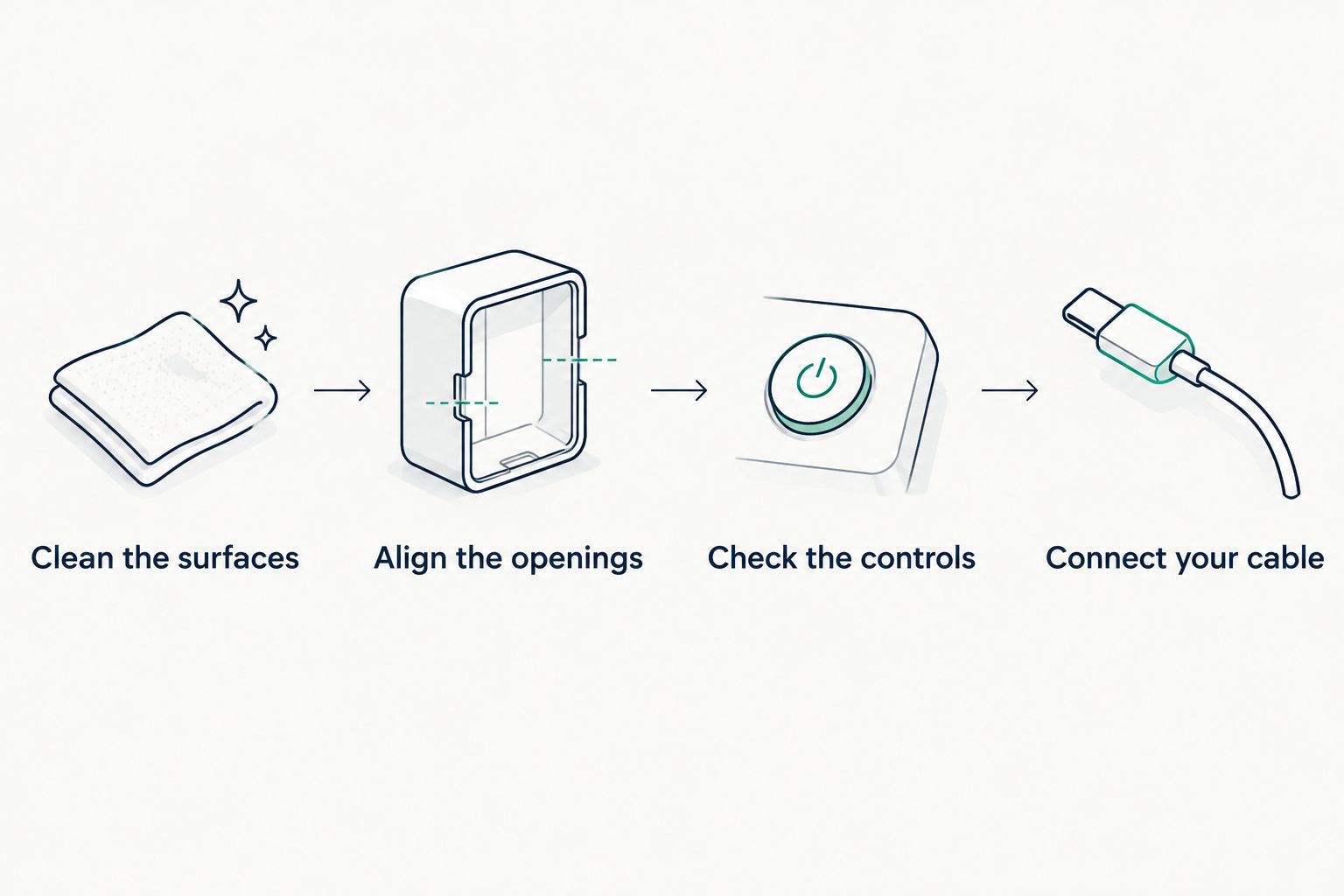
- Clean the surfaces. Remove loose grit from the tablet and the inside of the case with a suitable soft cloth.
- Align the openings. Match the camera, charging port, and buttons before seating the tablet.
- Seat the tablet gently. Fit the edges as directed. Stop if a corner needs excessive force or the case starts bending the tablet.
- Check the controls. Press the volume and top buttons. They should work without staying pressed.
- Connect your cable. Confirm that the connector seats properly without the case pushing against it.
- Test the camera and speakers. Check that the openings do not obstruct the lens or cover the speaker openings.
- Check the cover or stand. Close the cover, then try each intended standing position on a level surface.
Expected result: The tablet sits evenly, the openings align, and your normal controls and accessories remain usable.
A case that looks close but covers a control has not passed the fit check. Do not stretch, cut, or force a mismatched case to make it work.
Keyboard and stylus setup
Use this second workflow if your iPad Air case will share space with a keyboard or stylus. Test the complete setup, not each accessory separately.
- Fit the case and place the iPad in your usual working position.
- Attach or connect the keyboard according to its own instructions.
- For a Bluetooth keyboard, open Settings, then Bluetooth, and select the keyboard when it appears in the device list. Follow any pairing prompt.
- Open an app where you normally type and enter a short sentence.
- Attach, store, or charge your stylus using the method supported by that specific stylus and iPad combination.
- Fold and unfold the case again to check that accessories do not prevent normal closure or standing.
Expected result: You can type, use your stylus, and reposition the tablet without the case blocking a required connection.
Not every keyboard uses Bluetooth, and not every stylus charges against the tablet’s edge. Identify your accessories before changing settings or blaming the case.
Troubleshooting
The case fits around the edges, but the camera opening is wrong
Remove the case and recheck the model selection. Similar dimensions do not compensate for an opening that overlaps the camera. Choose the correct model option rather than modifying the cutout.
A button feels stuck or presses by itself
Remove the case and test the button without it. If the button works normally when uncovered, check the case’s alignment and compatibility before refitting it.
The charging cable will not seat fully
Remove the case and check the cable connection again. If it connects properly without the case, the opening or connector housing is the conflict. Do not force the plug through a tight opening.
The screen protector lifts at a corner
Check whether the case lip presses against the protector’s edge. Reseat the case only if the model match is correct; if the pressure remains, choose a compatible case-and-protector combination.
The cover does not put the iPad to sleep
First confirm that the case explicitly supports automatic sleep and wake for your model. Where available, check Settings, Display & Brightness, then Lock/Unlock. A folding cover alone does not establish that it supports this function.
Customize your workflow
Build around the way you actually use your tablet:
- Mostly reading: Prioritize comfortable holding and a cover that stays out of your way.
- Mostly watching: Check the stand on the surface where you normally place the tablet.
- Mostly typing: Check keyboard access, viewing angle, and stability together.
- Mostly carrying: Check the complete setup inside your usual bag, including any stylus holder.
For everyday tech shopping, Thestoretosee offers tablets, laptops, and related accessories. Keep your exact device information handy when comparing any fitted accessory.
Shop practical technology
Explore Thestoretosee for everyday tablets, laptops, and tech accessories.
FAQ
How do I know which iPad Air case fits my tablet?
Match the case’s stated compatibility to your exact iPad Air model. Open Settings, General, then About to find the model name and model number, and check the selected case option before ordering.
Can I choose an iPad Air case by screen size alone?
No. Screen size alone does not confirm the case’s shape, camera opening, button placement, or charging access. Use the exact model information as your main check.
Will a case bought in 2026 fit any iPad Air?
No. The purchase year does not determine compatibility. A case bought in 2026 still needs to match the specific iPad Air model listed in its compatibility details.
Is a folio case better than a back shell?
A folio suits shoppers who want a cover and a supported viewing position; a back shell suits shoppers who prefer an uncovered screen during use. Check the particular design, because stand features and coverage vary.
Can I use a keyboard with an iPad Air case?
Yes, when the keyboard, case, and iPad model are compatible. Check the connection method, attachment area, and standing position before treating the accessories as a complete setup.
Why does my iPad Air case stop the charging cable connecting?
The case opening can interfere with the cable’s connector housing. Test the cable without the case, then check alignment and compatibility rather than forcing the connector.
Does every folding iPad case support automatic sleep and wake?
No. Check whether the case explicitly supports that function for your iPad model. A folding cover is not proof of automatic sleep-and-wake support.
One last thing
Test the case with your own charging cable, not just an empty charging opening. An opening can look aligned while leaving too little clearance for the connector you actually use. For your 2026 setup, everyday usability is the final fit check.