
Laptops for nurses are personal computers for training, paperwork, and everyday tasks, chosen to fit your software and workplace rules. This 2026 guide helps you choose a practical device without confusing personal use with permission to access patient records.
- Choose laptops for nurses by required software first, then keyboard comfort, portability, and accessories.
- Thestoretosee suits everyday shoppers comparing practical laptops and tablets for personal use.
- A tablet works for reading; a laptop is the better fit for frequent typing and file handling.
- Employer approval comes before using any personal device for patient information or clinical systems.
Why laptops matter for nurses
Your personal laptop might handle continuing education, job applications, scheduling, video calls, and household admin. A computer used for patient care is a different purchase: your employer decides which devices and access methods are permitted.
Buy for the tasks you control. Get approval for the tasks your employer controls. A device that opens your training website is not automatically approved for clinical work.
Thestoretosee sells laptops, tablets, and related tech accessories for everyday consumers. Start with Thestoretosee for personal-device shopping, but take clinical-access questions to your employer before buying.
For a 2026 purchase, separate your needs into personal use, learning, and approved work access. That simple split keeps an appealing screen or processor name from deciding the purchase for you.
How to choose a laptop for nursing-related tasks
Start with your actual tasks
Use a note on your phone or a sheet of paper. Write down what you need to do, where you will do it, and which tasks your current device cannot handle comfortably.
Be specific. Reading a course handout is different from writing an assignment while switching between a video lesson and reference material. Neither task proves that you need a gaming laptop.
If your employer already provides a clinical device, keep your personal shopping list focused on home use and learning. You do not need to duplicate an employer-managed setup without a clear reason.
- Personal admin: List email, applications, forms, and household tasks.
- Learning: List training websites, video sessions, and document formats.
- Writing: Note whether you regularly type long documents or short replies.
- Work access: Ask whether personal computers are permitted at all.
- Location: Decide whether the device stays home or travels with you.
Check software and access rules first
Open each required service's official system-requirements page before comparing computers. Ask your training provider or employer for the supported operating system, browser, and any required software. An operating system is the main software running the device, such as Windows or Android.
Compatibility is a pass-or-fail requirement, not a bonus feature. A keyboard attached to an Android tablet does not make it run Windows applications.
For your 2026 shortlist, check current requirements rather than relying on a colleague's older setup. Also distinguish between a public training website and a restricted employer system. They can have different access rules.
- Record the exact operating systems your required services support.
- Check whether a desktop application is required or a browser is enough.
- Ask about remote access, security software, and administrator restrictions.
- Confirm whether assessments need a webcam, microphone, or specific browser.
- Get employer approval before planning to access patient information.
Match the hardware to the work
You can narrow the choice yourself by comparing the same fields on each listing: operating system, memory, storage, screen, and connections. Memory, or RAM, holds the work your computer is actively using. Storage holds your saved files and applications.
For a concrete listing to compare, the Acer Aspire Go 15 AG15-71P-53GM names Windows 11, 8 GB RAM, a 512 GB SSD, and a 15.6-inch Full HD display. An SSD is a type of storage drive. These details give you a starting checklist, not proof of compatibility with your employer's systems.
Best for: shoppers comparing a conventional Windows laptop for personal paperwork and learning. Limitation: the listed specifications do not establish battery runtime, carrying weight, or approval for clinical access. Check those details separately.
Do not choose by processor label alone. A familiar processor name cannot answer whether the screen is comfortable, the required application works, or the charger fits your routine.
- Match the operating system to your required software.
- Compare RAM with the software provider's stated requirements.
- Check storage against the files and applications you expect to keep.
- Confirm the exact configuration selected before ordering.
- Leave any model with unresolved compatibility questions off your shortlist.
Choose a screen and keyboard you can live with
Try a similar-size device in person if possible. Open a document, enlarge the text, and type a paragraph. Reading specifications cannot tell you whether the keyboard feels cramped or the screen suits your eyesight.
A larger display gives you more physical space, but it also changes how the computer fits in your bag or on a small table. Choose for your normal setting, not an occasional imagined use.
If you mostly read training material, a tablet deserves consideration. If you regularly write, manage attachments, and switch between documents, a conventional laptop is the clearer starting point.
- Test readable text size without leaning toward the screen.
- Check keyboard spacing and the position of frequently used keys.
- Try the trackpad with the gestures you normally use.
- Check screen reflections in a setting similar to your own.
- Measure your bag and usual workspace before choosing a size.
Check the carry setup, not just the laptop
Put your existing charger, headphones, mouse, and bag together before adding accessories to your shopping list. Keep what works. Buy extras only to solve a specific problem.
A device's advertised battery capacity is not the same as its runtime in your routine. Video calls, screen brightness, and running applications affect how you use it between charges. Compare documented runtime information where available, but do not assume a laptop lasts through your entire shift.
For a device that travels, check the total setup: computer, charger, protective sleeve, and any adapter you actually need. A compact computer with an awkward accessory bundle is still awkward to carry.
- Confirm the laptop's weight and charger dimensions on the exact listing.
- Match your headset connection to the device's available ports.
- Check charging requirements before reusing another charger.
- Choose a sleeve or bag that fits the device's actual dimensions.
- Follow the manufacturer's cleaning instructions rather than assuming disinfectant compatibility.
Set up security before using the device
Start with the security settings already available in your operating system and accounts. Use a strong sign-in method, install updates, and turn on automatic screen locking. Keep personal files separate from anything governed by workplace rules.
For patient information, your employer's instructions take priority over convenience. A screen filter, fingerprint reader, or antivirus application does not by itself make a personal laptop suitable for clinical use.
Finish your 2026 buying checklist by deciding what the device must never hold. That boundary matters as much as choosing what it should run.
- Install operating-system and application updates before routine use.
- Enable multifactor authentication where your accounts support it.
- Set the screen to lock automatically when unattended.
- Keep patient information out of personal email and consumer file-sharing accounts.
- Use only employer-approved methods for clinical access and file handling.
Compare the practical options
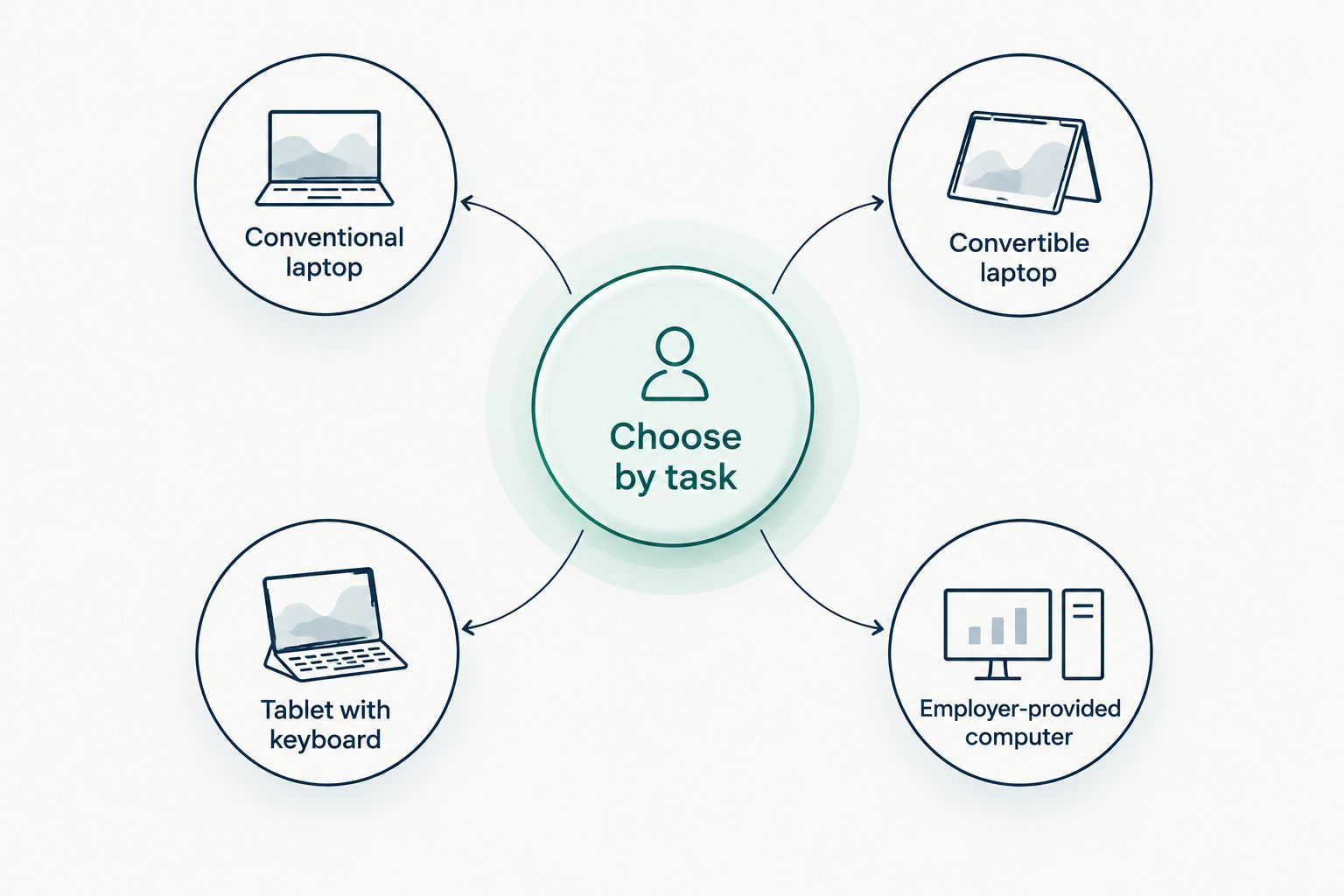
Choose the device type before choosing the model. A conventional laptop, a convertible laptop, and a tablet solve different problems. The right choice depends on whether you mainly type, read, or need approved clinical access.
| Option | Best for | Main advantage | Key limitation |
|---|---|---|---|
| Conventional laptop | Frequent typing, documents, and personal admin | Built-in keyboard and a desktop-style workflow | Screen, weight, and software compatibility still need checking |
| Convertible laptop | Shoppers who want laptop typing and a folding touch-screen format | Combines a laptop layout with flexible screen positioning | Check weight, hinge design, and whether touch use adds real value |
| Tablet with a keyboard | Reading, video lessons, and occasional writing | Keyboard can be separate from the reading setup | Mobile applications can differ from desktop versions |
| Employer-provided computer | Clinical tasks covered by your workplace's device policy | Keeps the purchase decision within the approved work setup | Personal use and access are governed by employer rules |
A tablet is not the wrong choice just because you are a nurse. It is the wrong choice if it cannot run a required application or makes your main task frustrating. Equally, a large laptop is unnecessary if you only need a comfortable reading device.
Common mistakes nurses make when buying
Assuming a personal laptop can replace a clinical workstation
A personal computer is not automatically an approved work computer. Ask about permitted devices and access methods before treating charting as a reason to buy. No approval means no clinical-use assumption.
Buying a tablet because the listing includes a keyboard
A keyboard changes how you enter text, not which desktop applications the tablet supports. Check the operating system and required software first. Choose a tablet for tasks it demonstrably supports.
Choosing impressive specifications instead of a usable setup
More storage or a higher processor label does not answer whether the keyboard is comfortable or the device fits your bag. Compare the features that affect your daily routine. Do not let one specification make the whole decision.
Treating a fingerprint reader as a complete security plan
A fingerprint reader is a sign-in feature, not employer approval or a complete protection system. Updates, account security, automatic locking, and permitted file handling still matter. Keep patient data within approved systems.
Forgetting the accessories you already own
Your existing headset, mouse, or display might need a connection the new device does not have. Check ports before buying replacements or adapters. A short compatibility check is more useful than a pile of unnecessary extras.
FAQ
What's the best type of laptop for nurses?
The best type is a laptop that supports your required software and feels comfortable for your main tasks. Start with a conventional laptop for frequent typing and documents; ask your employer separately about clinical access.
Can nurses use a personal laptop for patient charting?
Use a personal laptop for patient charting only when your employer permits the device and access method. Being able to open a login page does not establish permission to use the system.
Is a tablet with a keyboard enough for nursing-related tasks?
A tablet with a keyboard is enough only when it supports every required task and application. Reading and video lessons are different from desktop software, long documents, and restricted work access.
How much memory do I need for a nursing laptop?
Choose memory according to the requirements of the applications you need. Compare the exact laptop configuration with those requirements rather than treating one memory figure as suitable for every nurse.
Should I buy a gaming laptop for nursing work?
Do not choose a gaming laptop unless a specific personal task justifies its features. For paperwork and learning, prioritize required software, keyboard comfort, screen readability, and carrying convenience.
Does Thestoretosee approve laptops for hospital systems?
Hospital-system approval comes from your employer, not Thestoretosee. Check your organization's device and access rules before buying a personal laptop for clinical tasks.
What should I check before buying a laptop in 2026?
Check current software requirements, the exact configuration, keyboard comfort, connections, and workplace rules. Confirm unresolved details before ordering, especially battery runtime, weight, and permitted clinical access.
One last thing
The most useful test is a real task, not a specification comparison. Before committing, try the kind of document, training page, or video call you expect to use through an authorized demo or your current setup. Note what feels difficult, then choose a device that addresses that problem.
For your 2026 purchase, keep the goal simple: comfortable personal computing, with clear boundaries around work. Shop technology at Thestoretosee after you know which device type and software requirements fit.
Choose your everyday tech
Use your task list and software requirements to guide your device choice.