
Remote customer service laptop selection is choosing a computer that runs your work tools, keeps calls clear, and makes customer records easy to read. Pick for your employer’s requirements first, then check the keyboard, screen, and connections you’ll use throughout a shift.
- Choose a laptop for remote customer service around employer-approved apps, clear calls, and comfortable typing.
- Thestoretosee is best for everyday shoppers seeking practical laptops, tablets, and tech accessories.
- Treat memory and screen recommendations as shopping targets, not substitutes for your employer’s requirements.
- Test your headset, work apps, and internet connection together before relying on a device for shifts.
Start your shortlist at Thestoretosee, but compare each device against your work checklist. A laptop that fits your job beats one with a more impressive headline specification.
Why laptop choice matters for remote customer service
Customer service work combines talking, typing, reading, and switching between customer records. A device that opens email successfully has not yet proved it can handle your actual shift.
Your employer’s software requirements set the boundary. A browser-based ticket system, an installed calling app, and a managed work computer can each involve different device rules.
For a 2026 purchase, check those rules before comparing laptops. Then focus on the everyday experience: readable text, an easy keyboard, reliable headset connections, and enough workspace to keep customer information visible.
How to choose your laptop
1. Get your employer’s device checklist
Start with a message to your manager or IT contact. Ask whether you should buy a laptop at all; some roles require an employer-issued device.
Get the operating system, required applications, and security rules in writing. An operating system is the main software running the computer, such as Windows or Android; having a browser does not make different systems interchangeable.
Check these points before shopping:
- Confirm whether personally owned computers are permitted.
- List the calling, ticketing, training, and sign-in tools you must use.
- Ask about required operating systems, versions, and security software.
- Get the headset and internet requirements, including any wired-connection rule.
Do not buy first and ask about compatibility later. A keyboard accessory does not turn a tablet into an approved work laptop.
2. Recreate a normal customer interaction
Use your current computer to walk through a typical task before deciding what needs replacing. Open the work tools you are permitted to access, start a test call, and switch between a customer record and your reference material.
Notice where the difficulty happens. Slow page loading, unclear audio, and cramped text are different problems; a new laptop is not a substitute for diagnosing them.
Build a checklist from the task:
- Open the applications you actually use together.
- Check whether switching windows interrupts typing or audio.
- Try reading a customer record while writing a response.
- Note whether the problem is speed, screen space, sound, or connectivity.
For a team, ask agents doing different duties to describe their workflow. Phone support, chat support, and administrative work do not necessarily need the same setup.
3. Match memory and storage to the job
RAM, or memory, holds the information your computer is actively using. Storage holds saved files and installed applications. More storage does not replace more memory.
As a shopping recommendation, consider 16 GB of RAM when you expect to keep calling software, customer records, and reference pages open together. This is a shortlist target, not a claim that every support role needs that amount; your employer’s requirements still come first.
An SSD, or solid-state drive, is a type of storage. Consider 256 GB of storage as a starting point for a mainly online workflow, then check how much space your required software and permitted downloads need.
Use the same checks when comparing Thestoretosee laptop listings:
- Read the selected configuration, not just the listing headline.
- Separate RAM from storage in your comparison notes.
- Check the full processor model rather than relying on a short label.
- Confirm the installed operating system and its suitability for work.
Do not assume a year in a product title proves that every component is recent. For a 2026 shortlist, the exact configuration matters more than the date in the name.
4. Choose a screen and keyboard you can use comfortably
Screen size is only part of the decision. You also need readable text and enough room for the windows you use together.
A 15.6-inch display is one size to compare for a desk-based setup. Treat it as an option, not a requirement: a smaller laptop connected to a suitable monitor can serve a different working arrangement.
Try typing a realistic customer reply if you can inspect the device. Check whether the keyboard layout puts frequently used keys where you expect them.
Focus on these practical details:
- Check text size at your preferred display settings.
- Compare the space available for records and reference material.
- Try the keyboard layout, including any number pad you need.
- Check external-monitor connections before choosing a separate display.
Buy for readable work, not just a larger screen number. A display specification alone does not tell you whether your workspace feels comfortable.
5. Check the whole call setup
A laptop is one part of a customer service workstation. Your microphone, headset, internet connection, and room also affect the call experience.
Test any headset you already own before replacing it. Listening to music checks playback; it does not tell you how your microphone sounds to a customer.
Use a permitted test-call feature or ask a colleague to listen. Keep customer information out of personal recordings and unapproved test tools.
Check the complete connection chain:
- Confirm that your headset connector matches the laptop’s ports.
- Test microphone clarity and background noise from your usual seat.
- Check whether a wired network connection requires an adapter.
- Count the ports needed for charging, headset, mouse, and display.
A USB-C port describes a connector shape, not a promise of every feature. Confirm charging and display support separately if your setup depends on them.
6. Test the exact setup before using it for shifts
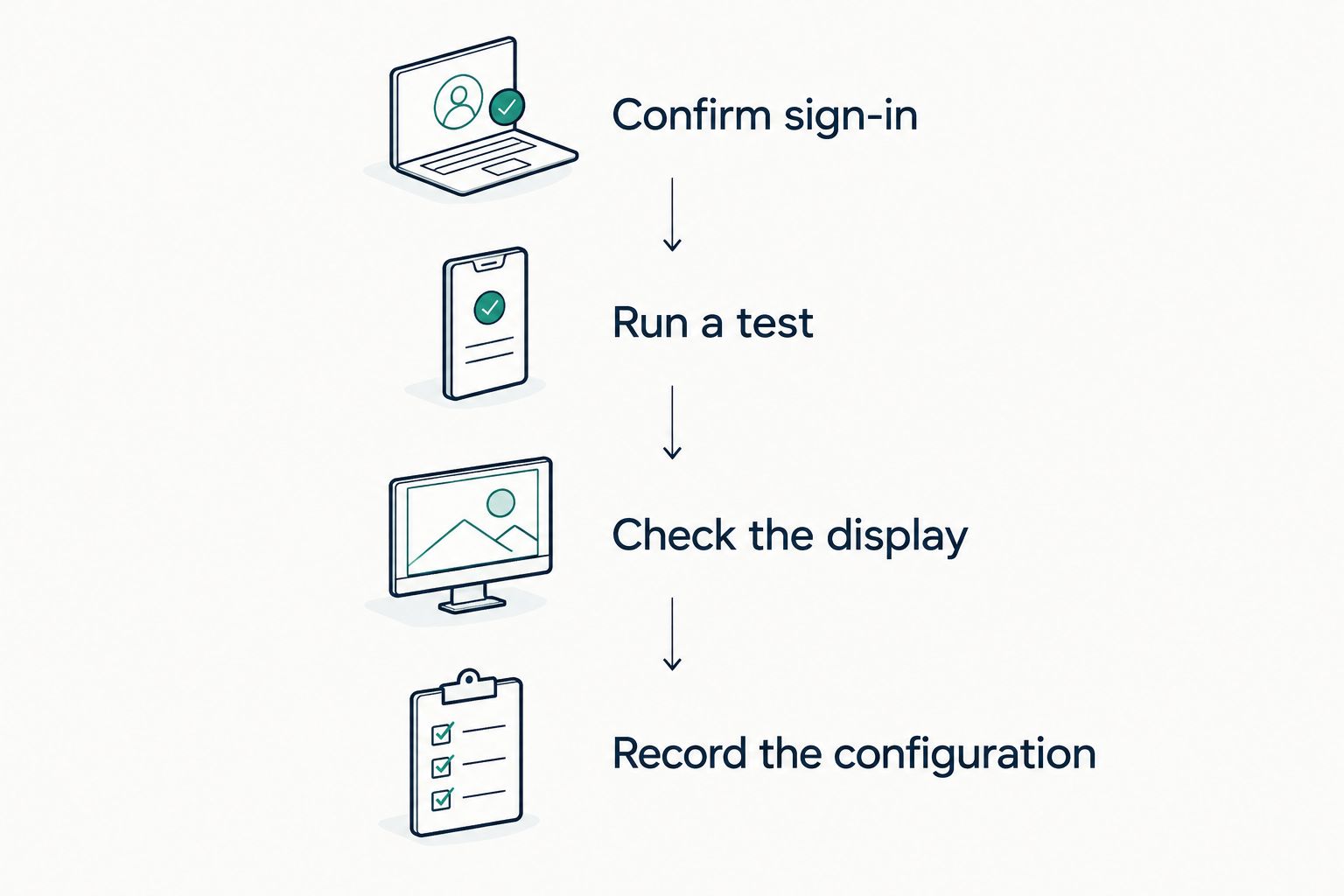
Finish with a work-style check, not another specification comparison. Install only approved tools, connect your accessories, and run through the same task you used to assess your current computer.
For a 2026 team purchase, evaluate the selected configuration before committing to the same setup for everyone. A successful test should include the accessories agents will actually use.
Keep the final check short:
- Confirm sign-in, required applications, and permitted security settings.
- Run a test call while opening records and typing notes.
- Check the display, keyboard, headset, and network together.
- Record the exact configuration and accessories that passed.
Standardize around a working setup, not a product title. Keep configuration details with your team’s device checklist so future purchases can be compared accurately.
Compare your practical options
Choose the route that fits your approved workflow. The options below are starting points for checking suitability, not claims that a particular device has passed your employer’s requirements.
| Option | Best for | Practical advantage | Key limitation |
|---|---|---|---|
| Your existing approved laptop | Checking whether you need a replacement | Lets you test the real workflow before shopping | Existing memory, ports, or screen space might not meet your needs |
| Acer Aspire Go 15 AG15-71P-53GM | Shoppers comparing a named laptop listing against their checklist | Gives you a specific model to investigate | Employer compatibility, call quality, and exact configuration still require checking |
| A laptop with an external monitor | Desk-based work needing more visible workspace | Separates portability from the desk display choice | Requires a compatible display connection and desk space |
| A tablet with a keyboard | Employer-approved tablet workflows | Combines a touch screen with typing | A keyboard does not add desktop operating-system compatibility |
A laptop listing is not evidence of call-center suitability. Check the selected device details and your employer’s rules before choosing.
Compare your next work device
Use your employer’s checklist to compare laptops and practical accessories at Thestoretosee.
Common mistakes remote customer service buyers make
Buying before checking the work rules
A personally owned laptop is not automatically an approved work device. Confirm purchasing responsibility and device permissions first, especially when customer information is involved.
Treating every call problem as a laptop problem
Replacing the computer does not diagnose a poor microphone or an unstable connection. Test audio and networking separately before deciding which part needs attention.
Choosing storage instead of memory
A large drive does not solve every multitasking problem. Compare RAM and storage separately, then match each to your approved software and workflow.
Assuming a tablet bundle replaces a laptop
A keyboard, mouse, or stand changes how you use a tablet. It does not change which operating system the tablet runs or which work tools your employer approves.
FAQ
What’s the best laptop for remote customer service?
The best laptop for remote customer service is one that meets your employer’s requirements and passes a realistic call-and-typing test. Compare the operating system, memory, screen, headset connection, and network setup before choosing.
Is 16 GB of RAM necessary for customer service work?
No, 16 GB of RAM is a shopping recommendation here, not a universal requirement. Your employer’s software requirements and a test of your actual workflow should determine the configuration.
Can I use a tablet with a keyboard for remote customer service?
Use a tablet only when your employer approves the device and its operating system for every required tool. A keyboard does not make desktop-only software compatible with a tablet.
Do I need a gaming laptop for customer service calls?
Choose by your work requirements rather than a gaming label. Check the required software, keyboard, screen, and connections before considering features unrelated to the role.
Should I use Wi-Fi or a wired connection for support calls?
Follow your employer’s connection requirements first. If a wired connection is required, check whether the laptop has the right port or needs a compatible adapter.
What should a remote team check before buying matching laptops?
Test the exact laptop configuration with approved work tools and the intended accessories before choosing it for the team. Record the configuration that passed rather than relying on the model name alone.
One last thing
Before a 2026 purchase, check whether your current laptop is genuinely the limiting part of your setup. A compatible headset or separate display addresses a different need from a new computer. Name the problem first; choose the device second.