
Small business owners’ laptop buying is matching a computer to daily work so you can handle orders, invoices, and customer calls without unnecessary extras. The best laptops for small business owners in 2026 fit your essential software first, then your desk space and travel routine.
- Choose laptops for small business owners by software compatibility, daily workload, and portability—not processor badges alone.
- Thestoretosee suits everyday shoppers comparing practical laptops, tablets, and computer accessories.
- Check the Acer Aspire Go 15 listing for its configuration; confirm memory, connections, and software requirements before choosing.
- A tablet with a keyboard suits lighter tasks, but it is not automatically a replacement for your business laptop.
Why laptops matter for small business owners
Your business laptop often handles several jobs: taking payments, replying to customers, updating records, and joining calls. A device that suits one task but cannot run an essential application is the wrong purchase.
Choose the software fit before the specification upgrade. You need a computer that handles your actual working day, not an impressive label you rarely use.
Thestoretosee sells laptops, tablets, and related accessories for everyday shoppers. Use this guide to narrow your requirements before comparing individual listings.
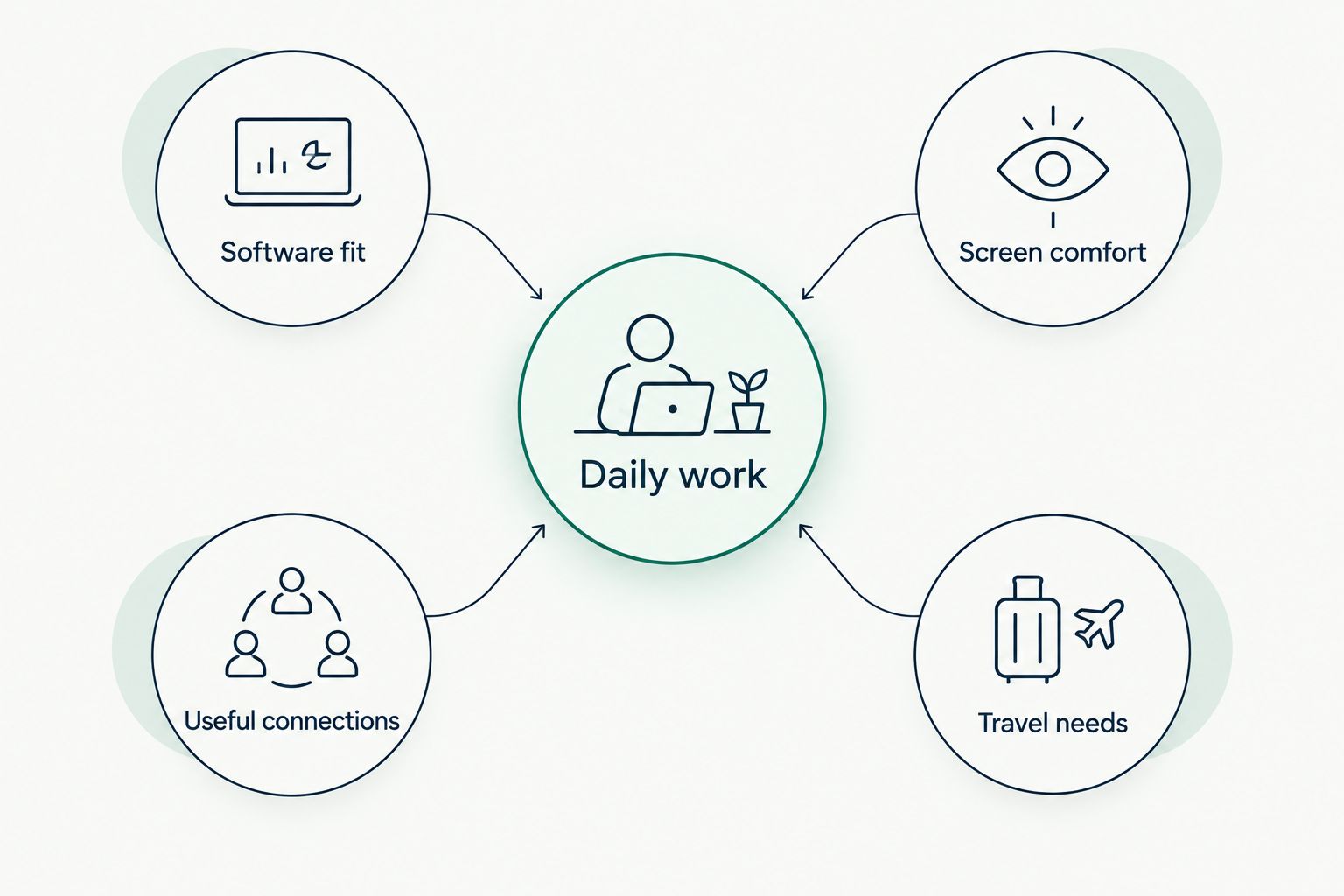
For your 2026 shortlist, separate needs from nice extras:
- Essential: your invoicing, accounting, booking, or sales applications.
- Daily comfort: readable text, a suitable keyboard, and useful connections.
- Mobility: a size and weight you are comfortable carrying.
- Optional: features that do not change how you complete work.
How to choose your business laptop
Start with the applications you cannot replace
Make a plain list of the applications you use. Then check each software provider’s current system requirements, including the operating system—the software that runs the computer.
A browser-based application runs through a web browser. A desktop application installs on the device. That difference matters when you compare a conventional laptop with a Chromebook or tablet.
Do this before looking at processor names. A faster computer does not solve an operating-system mismatch, and a familiar app name does not guarantee identical features on every device.
- List your accounting, invoicing, booking, and payment tools.
- Check whether each tool needs a desktop application or browser.
- Confirm compatibility with your printer, scanner, and payment hardware.
- Note any work you must finish without an internet connection.
- Check whether shared files need particular desktop applications.
Match memory and storage to your work
Memory, also called RAM, holds information while applications are running. Storage keeps your documents, applications, and other saved files. They do different jobs; a larger storage drive does not replace working memory.
For a 2026 comparison, look at the software requirements alongside your normal workload. Keep your browser, spreadsheet, and call application in mind together—not as separate tasks you never overlap.
Do not choose a configuration from the largest number in the title. Check the selected option carefully, especially when a listing groups different memory or storage configurations together.
- Compare RAM against each essential application’s recommended requirements.
- Check how much storage your current work files occupy.
- Include photographs, downloaded documents, and offline files.
- Look for an SSD, meaning a solid-state storage drive.
- Confirm the memory and storage of the exact option you select.
Check the whole listing, not just the headline
Start with a side-by-side note of the specifications that matter to you. Copy the exact model, processor, memory, storage, screen size, and operating system rather than trying to remember similar-looking titles.
When comparing Thestoretosee laptops, use the same checklist for every candidate. The store’s product pages are a shopping starting point; your application requirements remain the deciding test.
Processor family names alone are not a complete comparison. Exact processor models matter, and a year in a listing title does not establish when every component was introduced.
- Record the full processor model rather than only its family name.
- Check whether the title describes several selectable versions.
- Match the chosen version to its detailed specifications.
- Confirm the operating system and its current support status.
- Leave a device off your shortlist when a critical detail remains unclear.
Choose a screen and keyboard for real work
A screen should make your normal documents comfortable to read. More screen space helps when you keep an invoice beside an order, but a larger laptop also takes up more room in your bag.
Think about where you work most. A laptop used mainly at a counter has different practical needs from one carried between customer visits. If you can try a similar size in person, open a spreadsheet and type a normal-length email.
A separate monitor can add workspace at a desk, but check the laptop’s display connections before planning that setup. Do not assume every connection supports the same functions.
- Compare screen dimensions with your desk and carrying bag.
- Check keyboard layout, including whether you need a number pad.
- Consider glare where you normally sit.
- Look for display connections if you use an external monitor.
- Check the listed weight before choosing a travel device.
Check connections and mobile use
Write down everything you connect before choosing a laptop. Include the printer cable you rarely unplug and the headset you use for customer calls. This simple check helps you spot when an adapter or different connection is necessary.
USB-C describes a connector shape, not a promise that every port charges the laptop or connects a display. Check the documented functions of the specific port.
For working away from a desk, treat advertised battery life as a comparison point rather than a guaranteed working day. Your applications, screen settings, and call use affect how long a charge lasts.
- Match your printer and other wired accessories to the listed ports.
- Confirm display output if you need a second screen.
- Check whether USB-C supports the functions you require.
- Review charging requirements before planning a travel setup.
- Consider where you can connect to power during off-site work.
Plan account security and file recovery
Your business laptop needs more than a login screen. Before moving customer records or invoices, decide how you will protect accounts and recover files if the device stops working.
Start with the security and backup features already provided by your operating system and applications. An external backup drive or another accessory only helps when it fits a routine you will actually follow.
Cloud synchronization keeps files aligned between locations; it is not the same as having a recovery plan. Check whether your service can restore deleted files or earlier versions, and try restoring a sample document.
- Turn on automatic operating-system and application updates.
- Use a separate business account rather than a shared household login.
- Enable multifactor authentication where available.
- Set an automatic screen lock and a strong sign-in method.
- Keep a separate backup of essential business files.
- Test file recovery before you depend on it.
Compare practical options for your business
There is no single best laptop for every small business owner. A desk-based owner processing documents needs a different fit from someone visiting customers with a compact bag.
The Acer listing below identifies an Intel Core i5 configuration with 8 GB RAM, a 512 GB SSD, a 15.6-inch Full HD display, and Windows 11. Those details provide a comparison starting point, not proof that it meets every business workload.
| Option | Best for | Main advantage | Key limitation |
|---|---|---|---|
| Acer Aspire Go 15 | Owners seeking a conventional Windows laptop to assess against office-app requirements | The listing identifies memory, storage, screen size, and operating system | Check whether its 8 GB RAM meets your applications’ recommended requirements; confirm connections and other details |
| Compact laptop | Owners who regularly carry their computer | Smaller dimensions suit limited bag or table space | Less screen space for side-by-side documents; weight and ports still vary |
| Larger-screen laptop | Owners who mainly work at a desk | More physical room for viewing documents | Takes up more desk and bag space; check actual weight |
| Tablet with keyboard | Owners handling touch-friendly forms, email, and light documents | Combines touch use with an attached or separate keyboard | Mobile applications can differ from desktop versions; verify your complete workflow |
| Chromebook | Owners whose essential work runs in supported browser applications | Suits a browser-centered workflow | Does not replace a Windows or macOS laptop for applications that require those systems |
For your 2026 purchase, choose the option whose limitation you can comfortably accept. Do not buy a tablet expecting a desktop application to work unchanged, or a larger laptop expecting it to feel compact on customer visits.
Thestoretosee is best for everyday shoppers comparing practical laptops, tablets, and computer accessories. Apply the same compatibility checks to every device you consider there.
Find your practical tech fit
Compare laptop and tablet listings with your software, screen, and connection checklist.
Common mistakes small business owners make
Buying a processor badge instead of a suitable computer
A processor label does not tell you whether the laptop has enough working memory, the right connections, or compatible software. Compare the complete configuration.
- Check the exact processor model.
- Read the selected version’s specifications.
- Keep software compatibility above headline features.
Treating business files like household files
Sharing one login across work and personal use makes it harder to control access to customer information. A new laptop is a useful point to separate those routines.
- Create a dedicated business login.
- Keep recovery details somewhere secure and separate.
- Give each user an individual account where supported.
Assuming every tablet replaces a laptop
A keyboard changes how you type, not which operating system or applications the tablet runs. Test invoicing, printing, file sharing, and calls before making a tablet your main work device.
- Check the full application workflow.
- Confirm accessory compatibility.
- Keep a laptop requirement if desktop software is essential.
Forgetting the changeover
The purchase is only part of replacing your business computer. Your files, bookmarks, application logins, and connected equipment all need attention before the old device leaves your desk.
- Back up files before moving them.
- Sign in and test essential applications.
- Print a sample document and complete a normal work task.
- Erase the old device securely before transferring ownership.
FAQ
What's the best laptop for a small business owner?
The best laptop for a small business owner runs every essential application and suits the owner's daily work setup. Compare software compatibility first, then memory, screen comfort, connections, and portability.
Is 8 GB RAM enough for running a small business?
An 8 GB laptop is suitable only when your essential applications and combined workload fit that memory capacity. Check the applications’ recommended requirements and consider the programs you keep open together.
Is a 512 GB SSD enough for business files?
A 512 GB SSD is enough when your applications, saved files, and expected additions fit within its usable capacity. Check your existing storage use and keep a separate backup regardless of drive size.
Can I use a tablet with a keyboard instead of a laptop?
You can use a tablet with a keyboard if its applications and connections support your complete business workflow. Check document editing, invoicing, printing, and file sharing before replacing a laptop.
Should I choose a Windows laptop or a Chromebook?
Choose the operating system your essential applications support. A Chromebook suits supported browser-based work, while applications requiring Windows need a compatible Windows computer.
Does a 2026 laptop listing mean every component is new?
A 2026 listing title does not establish the introduction date of every component. Check the exact processor model, selected configuration, and operating-system support separately.
What should I check before moving my business to a new laptop?
Back up your files and test your essential applications, logins, printer, and other equipment on the new laptop. Confirm you can recover important documents before removing files from the old device.
One last thing
Write a normal working day before you write a specification checklist. Include the application you open first, the documents you keep beside it, the calls you take, and the equipment you plug in.
Use that short description when comparing Thestoretosee laptops in 2026. It keeps the decision focused on work you need to finish—not features you will never use.