
Laptops for teachers are portable computers for planning lessons, grading work, and teaching online, with the aim of keeping classroom tasks manageable. For 2026, choose around your school’s required apps, comfortable typing, and classroom connections—not the biggest processor label.
- Choose laptops for teachers by school software compatibility before comparing specifications.
- Thestoretosee suits everyday shoppers comparing practical laptops and tablets, not specialist computing setups.
- The Acer Aspire Go 15 listing gives a concrete Windows laptop configuration to compare, not a guaranteed classroom fit.
- A tablet with a keyboard suits annotation and reading; verify your grading workflow before making it your main device.
Why the right laptop matters for teachers
A teacher’s laptop needs to move between different jobs: writing feedback, sharing a presentation, joining a meeting, and opening school systems. A device that handles one task comfortably can still be awkward for another.
School compatibility comes before specifications. A comfortable keyboard cannot fix an unsupported assessment application, and a large screen does not solve a missing projector connection.
Thestoretosee sells laptops, tablets, and related accessories for everyday computing. Use this guide to turn your teaching routine into a short buying checklist before you compare devices.
For a 2026 purchase, separate what your school requires from what you personally prefer. Required software, device-management rules, and permitted access to student records belong on the first list; screen size and keyboard feel belong on the second.
How to choose a laptop for teaching
Check your school’s requirements first
Start with a free check: ask your school’s technology contact which operating systems and personal devices are permitted. The operating system is the software platform the computer runs, such as Windows or ChromeOS.
Get specific about tasks. Opening a learning platform in a browser is different from installing exam software, using a printer driver, or accessing a school-managed network.
Do not assume a personal purchase can replace a school-issued device. Your school sets the rules for its systems and student information.
- List your required teaching, grading, meeting, and assessment applications.
- Ask whether each application needs an installed version or works in a browser.
- Confirm whether personal devices can access school accounts and student records.
- Check printer, projector, and interactive-display requirements.
- Keep the written requirements beside you when comparing listings.
Test your actual teaching routine
Before shopping, use your existing computer to walk through a normal lesson-preparation session. Open the documents, browser tabs, presentation, and meeting application you actually use together.
Notice the specific problem you want to fix. Slow switching between applications, uncomfortable typing, and a cramped display are different issues; they should not all lead to the same purchase.
Buy for your busiest normal task, not an imagined future project. If you edit classroom videos regularly, include that in your requirements. If you mainly write lessons and enter grades, keep those tasks at the center of your choice.
- Prepare a lesson while keeping your reference material open.
- Enter sample feedback without using real student information.
- Join a test call and share a presentation.
- Try downloading, finding, and uploading a teaching document.
- Write down what feels slow, awkward, or difficult to read.
Read specifications as everyday trade-offs
Use your task list to interpret the specifications. RAM is the computer’s working memory; storage holds your applications and saved files. More storage does not substitute for more working memory.
An SSD is a type of storage. Screen size tells you the display’s diagonal measurement, not whether its text, brightness, or viewing angles will suit your classroom.
For a 2026 shortlist, write the exact configuration next to each model name. A processor family name alone does not identify the full processor, and similar-looking listings can describe different configurations.
- Record the exact processor model rather than only the family label.
- Separate installed RAM from storage capacity in your notes.
- Check whether the operating system supports every required application.
- Review screen resolution alongside screen size.
- Confirm that the selected configuration matches the specifications you compared.
Check the keyboard, screen, and carrying setup
A teaching laptop is also something you carry, read, and type on. Start with a hands-on check where possible: type a paragraph, read a worksheet at a comfortable zoom level, and try the trackpad.
Compare the complete carrying setup, including the charger and any adapters. A device that looks convenient on a desk still needs to work in your teaching bag.
For marking and lesson planning, think about what you need visible at the same time. A larger display gives you more physical viewing area, but the laptop’s dimensions also affect bag fit and desk space.
- Check keyboard spacing and the keys you use for editing.
- Read a document with your usual text size and zoom settings.
- Compare device dimensions with your bag and classroom desk.
- Check whether the charger is included in the listed package.
- Try handwriting or touch input only if those features matter to your lessons.
Match the connections to your classroom
Make a simple list of what the laptop must connect to before buying accessories. Include the classroom display, printer, headset, external storage, and any equipment you personally use.
Check port capabilities, not just shapes. USB-C describes a connector; a USB-C port does not automatically support every charging or display function.
Battery capacity also needs context. A capacity figure alone does not establish how long a laptop will last while you share your screen, use a webcam, and keep teaching materials open.
- Record the connector used by your classroom display.
- Verify the laptop’s stated external-display support.
- Check headset and microphone connections.
- Confirm charger compatibility before planning to share chargers.
- Look for battery-test conditions that resemble your own use.
Rehearse a lesson before switching devices
Keep your existing setup in place while you prepare the replacement. Sign in to approved accounts, install permitted applications, and test with sample materials before using the device for live teaching.
Check the retailer’s current policies before purchasing rather than assuming a particular return or warranty arrangement. Then keep the order details and exact configuration for your records.
For your 2026 setup, a successful test means completing your actual workflow—not simply reaching the desktop.
- Open a lesson, presentation, and grading tool together.
- Test the camera, microphone, speakers, and screen sharing.
- Connect to the classroom display with the intended cable or adapter.
- Check access to approved school storage and printing.
- Confirm that student information stays within school-approved systems.
Compare practical options for teachers
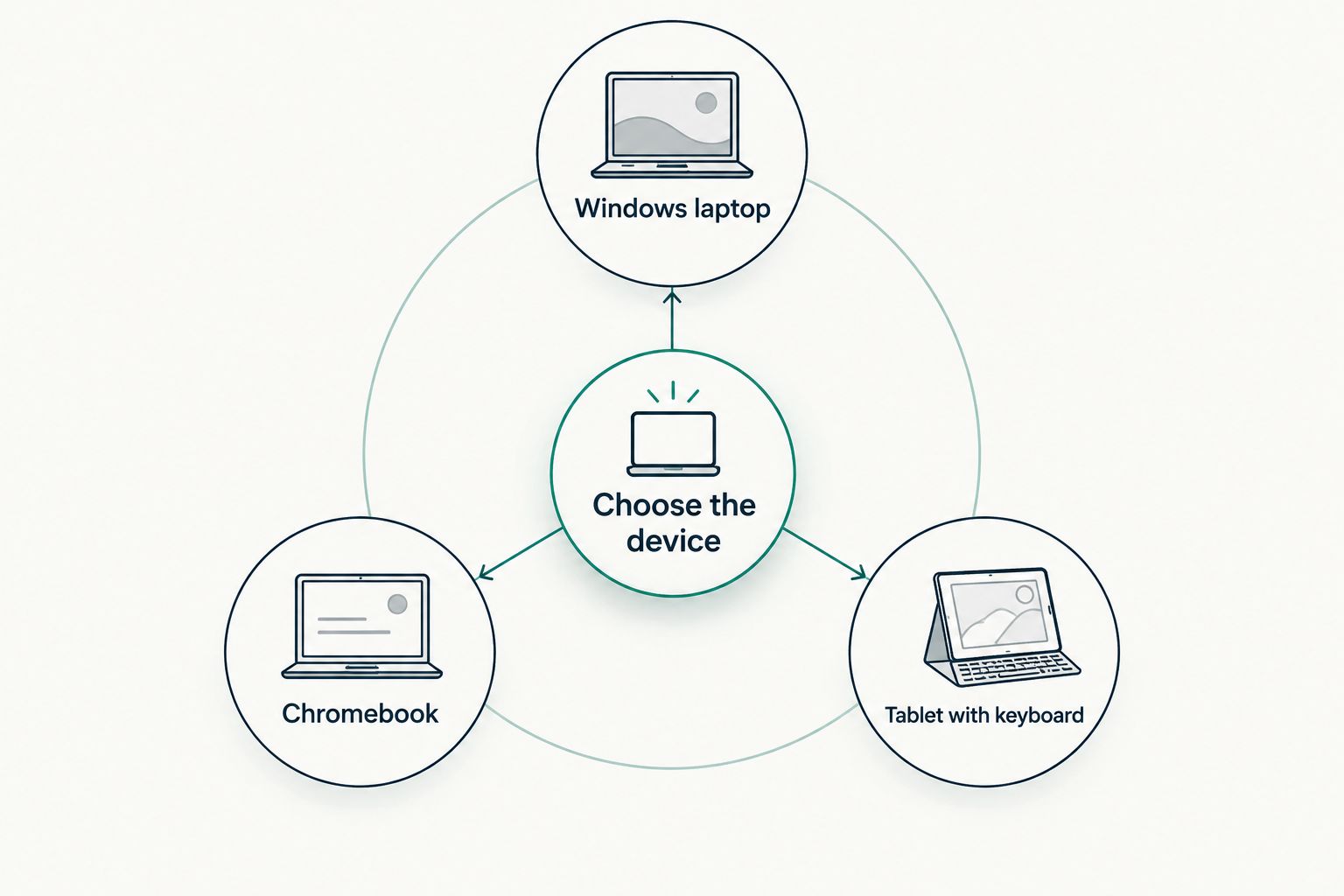
Choose the device category first, then compare individual models. A Windows laptop, Chromebook, and tablet with a keyboard serve different workflows; none is automatically the right answer for every teacher.
The Acer listing below supplies concrete specifications for a comparison. Those specifications do not establish battery runtime, keyboard comfort, or compatibility with your school’s systems.
| Option | Best for | Useful advantage | Key limitation |
|---|---|---|---|
| Acer Aspire Go 15 AG15-71P-53GM | Teachers whose required applications support Windows 11 | The listing specifies an Intel Core i5, 8 GB RAM, 512 GB SSD, and a 15.6-inch Full HD screen | Specifications alone do not establish classroom compatibility or battery runtime |
| Chromebook | Teachers whose required tasks work in supported browser applications | A fit for browser-based documents, learning platforms, and meetings | Does not replace a Windows laptop when required software needs Windows |
| Tablet with keyboard | Teachers prioritizing reading, touch input, or supported annotation tools | Combines a touch screen with a detachable or separate typing setup | Mobile applications and keyboard workflows need checking against desktop tasks |
The Acer Aspire Go 15 listing at Thestoretosee specifies 8 GB RAM, 512 GB SSD storage, and a screen measuring 15.6 inches diagonally. Treat these as separate buying details: working memory, file storage, and display size.
For a 2026 comparison, verify the exact processor and selected configuration on the product page. Do not infer performance from the Core i5 name alone.
A tablet is not a laptop replacement just because a keyboard attaches. Test document formatting, file uploads, grading, and screen sharing in the applications you need before making that switch.
Compare your next teaching device
Use your school requirements and daily task list to compare practical tech at Thestoretosee.
Common mistakes teachers make
Buying before checking school access
A personally owned laptop is useful only if it can access the systems you need under school rules. Confirm access and device-management requirements before choosing an operating system.
Treating a processor label as a complete specification
Core i5 or Core i7 is not a full description of a computer. Record the exact processor, RAM, storage, and operating system instead of comparing labels in isolation.
Assuming a keyboard makes every tablet suitable
Typing is only part of teaching work. Check whether the tablet’s applications support your grading process, document layouts, uploads, and classroom display setup.
Buying adapters without checking port support
Matching connectors does not prove that the laptop can send video or accept power through that connection. Verify the function on both the device and the accessory before ordering.
Mixing personal convenience with student-data access
An easy personal account is not automatically an approved place for classroom records. Follow your school’s rules for accounts, downloads, storage, and device access.
FAQ
What are the best laptops for teachers?
The best laptops for teachers support their school’s required applications and make everyday teaching tasks comfortable. Check software, keyboard, display connections, and your actual workflow before choosing a model.
Is a Chromebook enough for teaching?
A Chromebook fits teaching tasks that work in supported browser applications. Confirm every required assessment tool, printer connection, and installed application before choosing ChromeOS.
Can I use a tablet with a keyboard instead of a laptop?
A tablet with a keyboard can replace a laptop only when its applications support your complete teaching workflow. Test grading, file uploads, document formatting, and screen sharing before relying on it.
Is the Acer Aspire Go 15 suitable for teachers?
The Acer Aspire Go 15 is an option to compare when your required applications support Windows 11. The supplied listing specifies 8 GB RAM and a 512 GB SSD, but you still need to verify the exact configuration, classroom connections, and school requirements.
How much RAM do teachers need in a laptop?
Choose RAM around your required applications and the tasks you run together. Check application requirements and distinguish installed RAM from storage capacity rather than treating one figure as a complete measure of suitability.
Should I buy a personal laptop if my school provides one?
Check what the school-issued laptop already supports before buying a personal device. A second computer should solve a specific permitted need, and personal ownership does not override school rules for student information.
What should I check before buying a teaching laptop online?
Check the exact configuration, required software compatibility, display connections, and the retailer’s current policies. Save the selected configuration and order details so you can verify the device you receive.
One last thing
Test the handoff from laptop to classroom screen. Open the lesson, connect the display, share the right window, and check the sound. That rehearsal reveals practical problems a specification sheet cannot answer.
Before your first lesson on a new device in 2026, also close personal tabs and check notification settings. Your presentation setup should show the class only what you intend to teach.