
Instead of repeatedly deleting downloads to make room, use a compatible micro SD card for tablet files and keep apps on internal storage. This 2026 guide explains how to check compatibility, set up the card, and move files without losing your originals.
- Choose a micro sd card for tablet photos, documents, and downloads—not extra RAM.
- Thestoretosee recommends checking your tablet’s card support before choosing a capacity.
- Portable storage suits files you want to transfer between compatible devices.
- Copy files first, open the copies, and only then delete the originals.
Why this matters
A memory card gives a compatible tablet another place to save files. It does not increase RAM—the working memory your tablet uses while apps run—and it does not automatically move existing downloads.
Thestoretosee’s tablet-storage advice is best for everyday shoppers who need more room for files, not a faster tablet. When browsing Thestoretosee, check the exact tablet model’s storage support before pairing it with a card.
Before you start
- Check the tablet: Confirm that your exact model has a microSD slot and supports the card’s capacity. A SIM tray is not proof of memory-card support. An iPad requires a compatible external reader rather than an internal microSD slot.
- Gather your materials: Have the card, your tablet’s file manager, and a separate backup of anything already on the card. A built-in card slot does not require a shopping account or cloud subscription.
- Catch the setup trap: Formatting erases the card. If Android offers internal storage, choosing it ties the card to that tablet and makes it unsuitable for ordinary transfers between devices.
The steps below cover Android tablets using a card as portable storage: a separate place for files. Menu wording varies by tablet and file manager, so follow the matching action rather than expecting every screen to look identical.
Card compatibility and storage mode
Check the card before buying
Start with the tablet’s manual or manufacturer specifications. Look for supported card types and the maximum supported capacity; the shape of the slot alone does not answer either question.
Card capacity labels help explain compatibility:
- 32 GB: This capacity falls within the microSDHC standard.
- 64 GB: This capacity falls within the microSDXC standard.
- 128 GB: This also uses microSDXC; the tablet must support that capacity.
Support for microSDHC does not establish support for microSDXC. Choose a card within the tablet’s stated limit, not simply the largest card you find.
The SanDisk Ultra micro SD card is a card option to check against those requirements. Its fit for your tablet depends on the selected capacity and the tablet’s documented support; the listing name alone does not establish compatibility.
Choose how the tablet will use the card
| Storage mode | Best for | Advantage | Trade-off |
|---|---|---|---|
| Portable storage | Photos, documents, and files transferred between compatible devices | Keeps the card separate from the tablet’s internal storage | Does not automatically expand space for installed apps |
| Internal storage, when offered | Keeping a supported card dedicated to one Android tablet | Lets Android integrate the card into device storage | Ties the card to the tablet; removal can disrupt apps or data |
Choose portable storage for this workflow. Internal storage is a different setup, and some tablet manufacturers do not offer it.
Do not reformat an existing card just to change modes until its files are backed up elsewhere. Changing the storage mode is not a harmless settings adjustment.
Card setup
- Back up the card. Copy any existing files to another device or storage location before inserting it for setup.
- Insert it correctly. Follow the tablet’s instructions for tray position and card orientation. Do not force the tray or insert a tool into an unidentified opening.
- Open the card notification. If no notification appears, open Settings and look for Storage. Your tablet may place storage controls inside another settings category.
- Choose portable storage. If the tablet offers a choice, select the option described as portable or removable storage rather than internal storage.
- Format only if required. Read the warning before confirming. Stop if the card contains files you have not backed up.
- Open the file manager. Look for a separate SD-card location alongside the tablet’s internal storage.
Expected result: The file manager shows the card as a separate location, and you can open it without another setup warning.
If the tablet already recognizes a card containing readable files, you do not need to format it just to follow this guide. Formatting is a setup or repair action, not a routine first step for every card.
File transfer and verification
Use a copy-first workflow for anything you care about. A successful transfer message is useful, but opening the copied file is the better check.
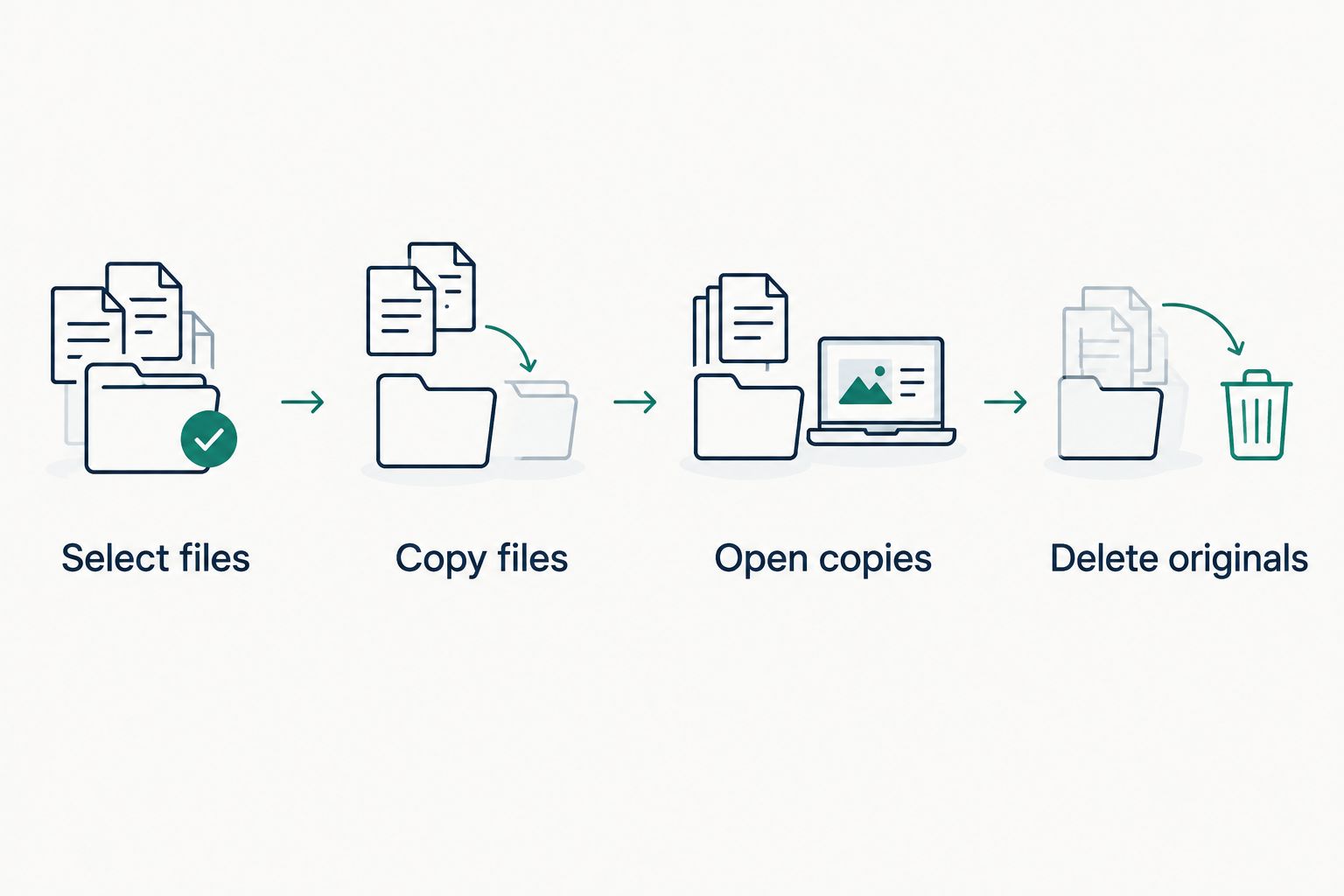
- Select files. In your file manager, open internal storage and find a familiar folder such as Download or Pictures. Select a small batch you can recognize.
- Copy files. Open the selected-file menu and choose Copy or Copy to, depending on your app. Choose the SD card as the destination, then select or create a clearly named folder.
- Wait for completion. Keep the card inserted while the transfer runs. Do not switch it to another device during copying.
- Open copies. Browse to the destination on the SD card. Open a document, view a photo, or play a video from that location—not from the original folder.
- Delete originals. Once you have checked the copies and retained a separate backup for important files, remove the originals from internal storage.
- Check freed space. Return to the tablet’s storage settings. If your file manager uses a trash folder, review it before emptying it; trashed files can still occupy space.
Expected result: The files open from the SD card, and deleting the internal originals releases internal storage space.
Some file managers also provide Move or Move to. That is convenient, but copying first keeps the source intact while you check the destination. Use the safer sequence for personal photos and documents.
What belongs on the card?
- Good candidates: Downloaded documents, ordinary photos, music files, and videos you manage yourself.
- Check inside the app: Camera photos, podcast downloads, and offline media controlled by an app.
- Leave alone: System folders, unfamiliar app folders, and protected downloads you cannot open as ordinary files.
Moving an app’s folder manually is not the same as moving the app. It can also leave the app unable to find its files.
Save new files to the card
Copying existing files solves today’s space problem. Changing a supported app’s save location reduces the same cleanup later.
Camera photos
- Open your camera app and its Settings.
- Look for a storage-location control. Use the SD-card option only if the app provides one.
- Take a test photo, then use the file manager to confirm that the new photo is on the card.
Expected result: New photos from that camera app save to the card. Existing photos stay where they were until you transfer them.
If the camera has no storage-location setting, keep its default and periodically copy photos using the verified workflow above.
Downloads and offline media
Check each app separately. A browser, podcast app, or video app can have its own download controls; changing one app does not change the others.
- Select the SD card only when the app explicitly offers it.
- Check whether the setting applies to future downloads or also moves existing ones.
- Open a new download from inside the app to confirm it works.
Protected offline downloads belong to the app that created them. Do not drag their folders to the card and expect the app to recognize them afterward.
Troubleshooting
The tablet does not detect the card
Check the exact model’s card support and capacity limit first. Then follow the tablet’s shutdown and tray instructions before reseating the card.
If another compatible device or reader can read the card, back up its contents there. Do not accept a formatting prompt as your first attempt to recover files.
The tablet asks to format a card containing photos
Cancel the prompt. Use a device that can still read the card to copy the photos elsewhere before attempting formatting.
The prompt means the tablet cannot currently use the card as presented. It does not mean the files are safely backed up.
Files moved, but internal storage is still full
Check whether you copied rather than moved the files. Copying deliberately leaves the originals in place.
After verifying the destination, delete the originals and review the file manager’s trash. Also check the storage breakdown: installed apps and their data remain separate from ordinary downloaded files.
An app cannot find files on the card
Open the app’s own file picker and select the SD-card location. Grant file access when Android requests it for that action.
If the app manages protected downloads, use its built-in storage controls instead. Moving folders manually does not update every app’s library.
A large video will not copy
Check both free space and the card’s file system—the format used to organize its files. FAT32 has a single-file limit of just under 4 GiB, even when the card has more free space.
Back up the card before changing its format. Let the tablet use a supported format rather than choosing one that another device happens to offer.
Customize your workflow
Set up separate folders for photos, documents, and videos so you can check destinations quickly. Keep apps and unfamiliar system files out of your cleanup routine.
Before removing the card, stop transfers and use the tablet’s eject or unmount control when provided. Follow the device’s instructions if it requires shutdown before tray removal.
For your 2026 tablet shopping checklist, put confirmed card support ahead of headline storage capacity if removable files matter to you. Thestoretosee’s practical tech advice starts with what you need the device to do—not a specification in isolation.
FAQ
What’s the best micro sd card for tablet storage?
The best micro SD card for tablet storage matches your exact tablet’s supported card type and capacity. Choose portable storage for ordinary photos, documents, and downloads; check the manufacturer’s requirements before buying.
Will a microSD card make my tablet faster?
A microSD card adds file storage, not RAM or processing power. Moving files can free internal space, but it is not a general speed upgrade.
Can I move all my tablet apps to a microSD card?
No, a microSD card does not automatically let you move every app. App movement depends on the tablet, its Android implementation, the storage mode, and the app itself.
Should I choose portable or internal storage?
Choose portable storage for removable files and transfers between compatible devices. Internal storage, when offered, dedicates the card to the tablet and requires a different setup.
Why does my tablet want to erase my memory card?
A formatting prompt means the tablet wants to prepare the card in a usable format. Cancel if it contains files you need, and back them up through a device that can still read them.
Can an iPad use a microSD card?
An iPad cannot take a microSD card directly because it has no built-in microSD slot. A compatible external reader can provide access to supported files, but it does not expand internal app storage.
Is a microSD card enough to back up my photos?
A card holding the only copy of your photos is not a backup. Keep another copy on a separate device or backup service before deleting the originals from your tablet.
One last thing
A photo on the card is not necessarily a backed-up photo. If you delete the tablet’s original and keep only the card copy, you still have just one copy. Protect important files separately before treating the card as your everyday storage.