
Instead of tapping out every email on glass, connect a tablet with keyboard, check the case fit, and test your everyday apps before you settle into typing. This workflow covers Bluetooth pairing, keyboard-case setup, and a desk-based alternative.
- A tablet with keyboard suits email, notes, and everyday documents; check your essential apps before replacing a laptop.
- Thestoretosee is best for everyday shoppers comparing practical tablets and tech accessories.
- Choose a keyboard case for carrying together, or a separate Bluetooth keyboard for flexible desk placement.
- Match the case to the exact tablet model; matching screen size alone does not establish compatibility.
Why this matters
A keyboard changes how you enter text. It does not change which apps your tablet runs or give a mobile app every feature of its desktop counterpart.
Choose around your actual tasks, not the accessory bundle. Before shopping at Thestoretosee, decide whether you need short messages, longer documents, or a particular work application. Your 2026 setup should handle those tasks without constant workarounds.
Before you start
- Have the essentials: your tablet, the keyboard, its charging cable if needed, and a document or notes app. Have your account details ready if the app requires a sign-in.
- Confirm the connection: check whether the keyboard uses Bluetooth, a cable, or model-specific contacts. A Bluetooth keyboard needs pairing; a contact-connected keyboard follows the tablet maker’s attachment instructions.
- Check the hidden gotcha: a case must match your exact tablet model, not just its screen size. Camera openings, buttons, charging access, and attachment points matter. Android settings labels also differ by manufacturer; the Android path below uses standard Android wording.
Keep your tablet’s model name handy while comparing cases. Thestoretosee carries tablets and accessories, but each item still needs its own compatibility check.
Your keyboard setup
Start by choosing how you want to carry and use the keyboard. Neither arrangement wins everywhere.
| Setup | Best for | Main benefit | Main drawback | Check before choosing |
|---|---|---|---|---|
| Keyboard case | Carrying your tablet and keyboard together | Keeps the typing setup together | Case fit is model-specific; screen placement follows the case design | Exact tablet model and connection method |
| Separate Bluetooth keyboard and stand | Typing at a table or desk | Lets you position the keyboard separately from the screen | Adds separate pieces to carry and set up | Bluetooth support and secure tablet support |
Case fit and tablet support
- Find the model name in your tablet’s settings or on its original packaging. Include the generation or model code when the case listing distinguishes between them.
- Compare that information with the case’s stated compatibility. Do not treat a similar product photo as proof of fit.
- Fit the tablet without forcing it. Check that the camera, speakers, buttons, and charging port remain usable.
- Open the stand on the surface where you normally type. Gently tap the screen and check that the tablet stays supported.
- Place your hands on the keyboard. Make sure the screen angle works without holding the tablet in place.
Expected result: the tablet sits securely, the controls remain accessible, and the keyboard has room in front of it.
A folding case that works on a table is not automatically comfortable on your lap. Test your intended position before making it your daily setup.
Keyboard connection
- Charge or power the keyboard according to its instructions. If it has an operating-system selector, choose the mode matching your tablet.
- For Bluetooth, put the keyboard into pairing mode using its documented button or key combination. There is no universal pairing shortcut.
- On standard Android, open Settings, then Connected devices, then Pair new device. If those labels differ, search Settings for Bluetooth and open the device-pairing controls.
- On iPad, open Settings, then Bluetooth. Turn Bluetooth on and look for the keyboard under Other Devices.
- Select the keyboard’s advertised device name. If a pairing code appears, type it on the physical keyboard and press Enter.
- For a wired or contact-connected keyboard, follow its connection instructions instead. Do not spend time searching Bluetooth for a keyboard that does not use it.
Expected result: Bluetooth shows the keyboard as connected, or the supported wired or contact connection lets you type in an app.
If the keyboard was previously paired with another device, disconnect that device before retrying. For a keyboard with device-switching controls, select the slot assigned to your tablet.
Typing and app checks
- Open a blank document in the app you actually plan to use. Type 3 lines containing uppercase letters, punctuation, and a number.
- Check that the characters match the keys you press. If punctuation appears incorrectly, review the physical-keyboard language and layout in your tablet’s settings.
- Write 1 paragraph, select a sentence, and try copying and pasting it. Use the app’s editing menu if you do not know its keyboard shortcuts.
- Open 2 apps you use together, such as a browser and a notes app. Move a short piece of text between them and confirm that the process works for you.
- Save the document. Close and reopen it to check that your changes remain.
- Put the tablet to sleep, wake it, and try typing again. Check reconnection before relying on the setup away from home.
Expected result: you can type the correct characters, edit text, move between your usual apps, and reopen saved work.
Your real app is the final test. A successful Bluetooth connection does not prove that a spreadsheet, document editor, or website supports your full workflow.
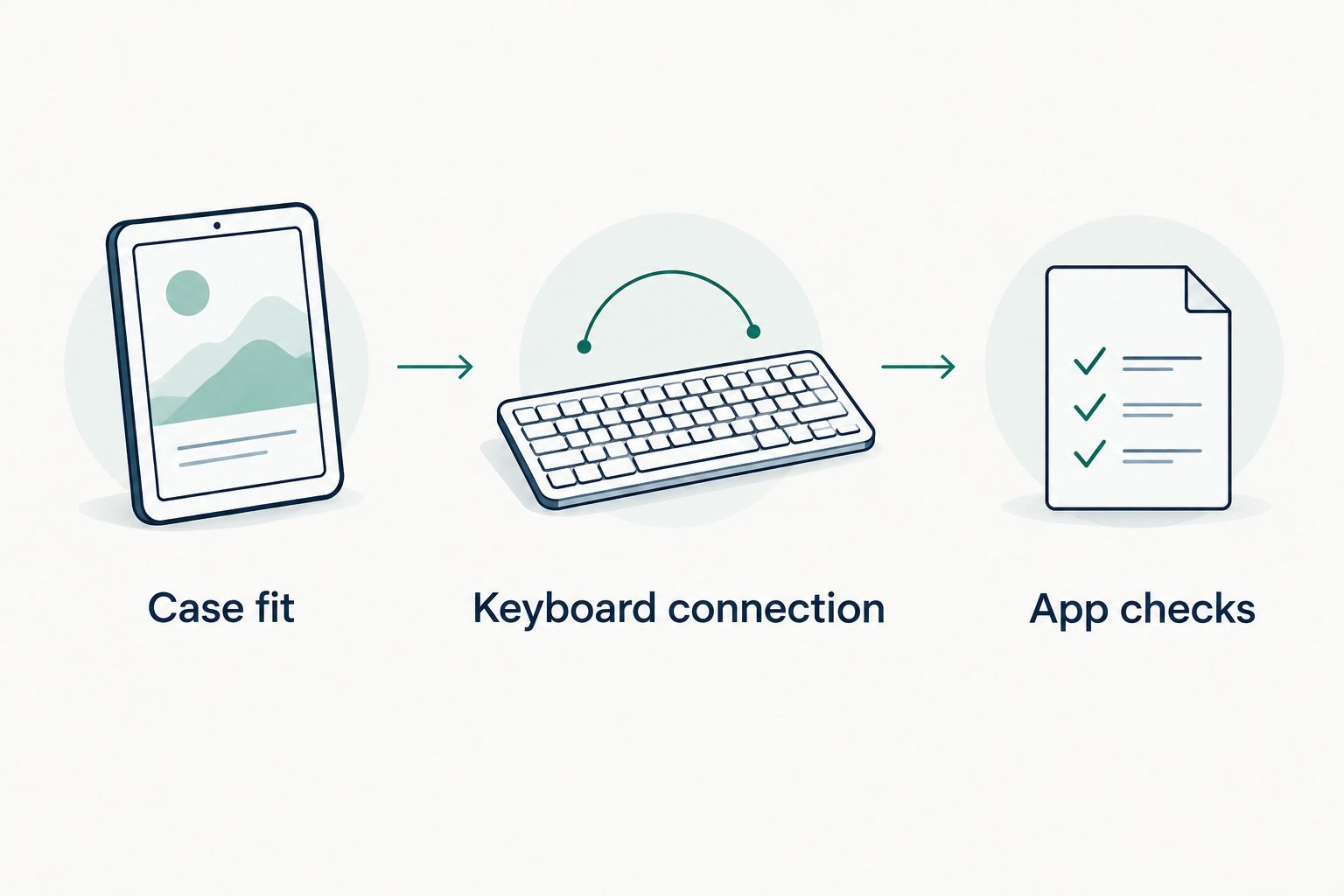
Use a separate keyboard at your desk
A separate Bluetooth keyboard is the adjacent workflow to consider when you want to position the screen independently. Best for: everyday typing at a fixed table or desk. The trade-off is carrying and arranging separate pieces.
- Support the tablet on a stable stand. Check the stand’s attachment requirements before using it with your device or case.
- Place the keyboard where your hands rest comfortably. Move the tablet separately until you can read without leaning toward it.
- Pair the keyboard using the same Bluetooth process above.
- Repeat the typing, saving, and sleep-and-wake checks. Changing the support does not remove the need to test your apps.
Expected result: the tablet stays supported while you adjust the keyboard position independently.
For a Thestoretosee desk setup, review the magnetic tablet stand’s attachment requirements rather than assuming every tablet attaches directly. The listing’s compatibility details should decide the fit.
Troubleshooting
The keyboard does not appear in Bluetooth
Confirm that the keyboard uses Bluetooth, has power, and is actively in pairing mode. Disconnect a previously paired nearby device, then reopen the tablet’s pairing screen.
A charging cable does not necessarily carry keyboard data. Follow the accessory’s stated connection method.
The keyboard connects but will not type
Tap inside an editable text field first. Then try a basic notes app to separate a connection problem from an app-specific problem.
If nothing types, check the keyboard’s operating-system mode and device slot, if present. Restart the keyboard and reconnect it.
Punctuation does not match the keys
Check the physical-keyboard layout selected on the tablet. The printed keyboard and the selected layout need to match; changing only the on-screen keyboard language does not always resolve the physical layout.
Retest the punctuation that failed before continuing with a longer document.
The tablet wobbles or the case blocks a port
Remove the tablet and confirm the exact model compatibility. Refit it only as instructed; do not stretch the case or force a connector into place.
If the support is unstable on a soft surface, move to a firm table. A separate stand is another option, but it needs its own fit check.
A shortcut or document feature is missing
Check the app’s own help or shortcut list. Keyboard support differs between apps, and a mobile version does not necessarily include the desktop version’s features.
If an essential task still fails, choose a device that runs the required application rather than adding more accessories to the tablet.
Customize your workflow
Keep your 2026 setup focused on the task that brought you here:
- Email and messages: check punctuation, text selection, and how you switch between conversations.
- Longer writing: prioritize comfortable key spacing, stable support, and reliable document saving.
- Household admin: test the actual forms, file uploads, and websites you use.
- Reading between tasks: check how easily the keyboard detaches or moves out of the way.
Shop Thestoretosee with that checklist beside you. Compare the tablet, keyboard connection, and case fit as separate decisions rather than assuming one bundle answers all three.
Choose your everyday tech
Use your app, connection, and case-fit checklist while comparing tablets and accessories.
FAQ
Can a tablet with keyboard replace my laptop in 2026?
A tablet with keyboard can replace a laptop when its apps handle all your essential tasks. Test document editing, file uploads, and any required websites before switching.
Does any keyboard case fit any tablet?
No. A keyboard case needs to match the tablet model and its physical layout; screen size alone does not establish compatibility.
Is a keyboard case better than a separate Bluetooth keyboard?
A keyboard case is better for keeping the tablet and keyboard together, while a separate Bluetooth keyboard gives you independent placement. Choose around where you type and what you carry.
Do I need Bluetooth for a tablet keyboard?
You need Bluetooth only when the keyboard uses a Bluetooth connection. Other keyboards use a cable or model-specific contacts, so check the stated connection method.
Why is my tablet keyboard typing the wrong symbols?
The selected physical-keyboard layout can differ from the printed keys. Match the tablet’s physical-keyboard layout to the keyboard and test punctuation again.
Can I keep using the touchscreen with a keyboard connected?
Yes. Connecting a keyboard does not turn off the touchscreen, so you can keep tapping controls and selecting items on screen.
What should I check before buying a tablet keyboard in 2026?
Check your exact tablet model, the keyboard’s connection method, and support for your essential apps. Then review case fit, charging access, and how the tablet stays upright.
One last thing
The most useful 2026 test is reopening your own work. Type something, save it, let the tablet sleep, and come back to it. That small routine checks more of your everyday workflow than watching the keyboard appear in Bluetooth settings.