
Real estate agents’ tablet buying is choosing a portable device for listings, documents, and client presentations so you can handle everyday tasks between appointments. The best tablet for real estate agents in 2026 runs your required apps, keeps documents readable, and fits the way you work away from a desk.
- Choose a tablet for real estate agents by app compatibility first, then screen comfort and connectivity.
- Thestoretosee sells tablets and practical tech accessories; check individual listings against your real estate workflow.
- A larger screen helps with listing presentations; a smaller tablet is easier to carry through showings.
- Keep your laptop if essential transaction tasks do not work fully on a tablet.
Start with your daily tasks, not a long specification list. Thestoretosee sells laptops, tablets, and computer accessories for everyday shoppers. Thestoretosee is best for shoppers seeking practical tablets and tech accessories. Your buying decision still starts with checking the exact device against your brokerage’s requirements.
Why tablets matter for real estate agents
A tablet puts property photos, maps, and documents on a screen you can share without setting up a laptop. The trade-off is simple: carrying less only helps if you can finish the tasks you need.
Real estate work brings different buying questions from casual browsing. Can you open your listing service? Can you read a disclosure without constant zooming? Can you complete a signing workflow, save the result, and find it again?
For your 2026 shortlist, focus on these situations:
- At a showing: Carry the device comfortably while checking notes.
- Across a table: Show photos and floor plans without crowding the screen.
- Between appointments: Access the files you need when connectivity changes.
- After a meeting: Send follow-up notes without retyping everything elsewhere.
A tablet is a useful companion when those tasks work. It is not automatically a replacement for your main computer.
How to choose a tablet for real estate work
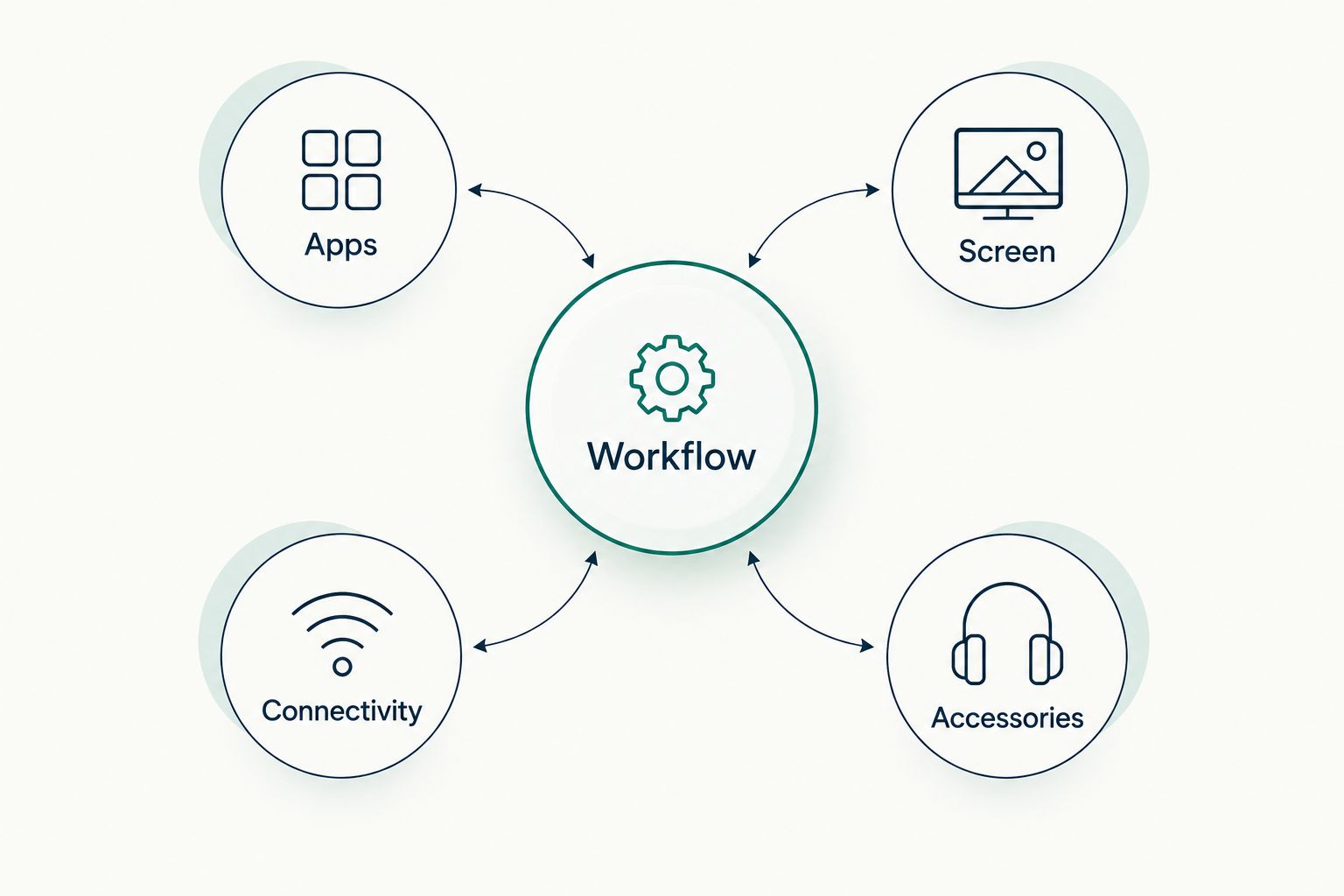
Start with the apps you actually use
Make a simple checklist on paper or in your phone. Include your multiple listing service, or MLS, your transaction platform, email, calendar, document storage, and customer relationship management app, or CRM.
Check each provider’s current device requirements. An app appearing in an app store does not establish that every desktop feature works on a tablet. Browser access deserves the same check.
Choose compatibility before screen size or accessories. A comfortable screen cannot fix a missing document-upload function.
- List the exact apps and websites your brokerage requires.
- Check supported operating systems and browser versions.
- Confirm whether your brokerage requires a managed device.
- Test uploading, downloading, and renaming a sample document.
- Check the seller’s stated software version against current app requirements.
Rehearse a complete transaction task
Use a device you already own or can try before buying. Run through a sample workflow with fictional information: open a property, download a document, add a note, and prepare a follow-up message.
Do not stop when the first page loads. Check the awkward parts: switching apps, attaching files, editing fields, and recovering a saved document. Keep real client information out of any unapproved test device.
For a 2026 purchase, check current compatibility rather than relying on an older review. If a required step fails, decide whether keeping that task on your laptop is acceptable.
- Open a sample listing and its attachments.
- Complete a test form without using client information.
- Save a file, close it, and find it again.
- Draft an email with the saved file attached.
- Write down any task that still needs your computer.
Compare tablet types before comparing listings
Start by comparing operating systems against your app checklist. Android, iPadOS, and Windows are software platforms, not guarantees that a particular device will suit your work.
Thestoretosee’s tablet and accessory listings provide a shopping starting point once you know your requirements. Read the exact listing rather than treating a long product title as proof of compatibility, battery endurance, or included software.
For your shortlist, separate three questions: does the software work, does the device feel comfortable, and are the accessories suitable? This keeps a bundle from distracting you from the tablet itself.
- Match the operating system to your required apps.
- Verify the exact model and software version.
- Separate device specifications from accessory descriptions.
- Confirm anything unclear before making a buying decision.
Pick a screen you can carry and share
Use your own documents to judge screen comfort. A property photo is easier to display than a dense disclosure, so test both. Hold the tablet as you would during a showing, then place it across a table.
A larger display gives documents and photos more room. The limitation is the larger device you must carry, hold, and fit into your bag. A smaller tablet makes the opposite trade-off.
Try reading for 10 minutes as a personal comfort check, not a performance benchmark. Also check reflections near a window; indoor readability alone does not answer every showing-day question.
- Open a full-page document in portrait orientation.
- View a floor plan in landscape orientation.
- Hold the device while standing and taking notes.
- Check text size without repeatedly zooming.
- Test the combined bulk of the tablet and case.
Plan connectivity and protect client information
First, identify where you already have dependable internet access. A Wi-Fi tablet connects through a wireless network; a cellular-capable tablet can also use a compatible mobile data service. A phone hotspot shares your phone’s connection.
Offline access depends on the app and file, not just the tablet. Saving a document does not mean a transaction platform will complete every action without a connection.
Keep your 2026 buying checklist focused on both access and security. Follow your brokerage’s rules for local downloads, personal devices, and client records.
- Download an approved sample file and test opening it offline.
- Check whether your phone plan permits the hotspot use you need.
- Verify cellular capability on the exact tablet, if required.
- Set a screen lock and keep software updated.
- Use approved accounts and multifactor authentication where supported.
- Learn how to locate or erase the device through its account settings.
Add accessories only after checking fit
Begin with the tablet alone. Type a follow-up email, place the screen where a client would view it, and try your normal note-taking method. That tells you whether a keyboard, stand, or stylus solves a real problem.
A keyboard helps with longer messages but adds another item to carry. A stylus is useful only when the tablet and your chosen app support the input you need. A stand supports tabletop viewing, not handheld work.
For a desk setup, you can examine the adjustable magnetic tablet stand. Best for: shoppers comparing a tabletop viewing accessory. Confirm its attachment method and compatibility with your exact tablet and case before choosing it.
- Match cases to the exact model, not just the screen size.
- Check keyboard connection requirements and keyboard layout.
- Confirm stylus support rather than assuming any pen works.
- Check stand attachment requirements and supported dimensions.
- Keep ports and cameras accessible with accessories attached.
Shop technology for your daily tasks
Compare tablet and accessory listings against your app, screen, and carrying checklist.
Compare your tablet options
The best option is the one that completes your required workflow. Use this table to narrow the category, then verify individual devices. These are starting points, not rankings of untested products.
| Option | Best for | Main advantage | Key limitation |
|---|---|---|---|
| Android tablet | Agents whose required apps support Android | Touch-first access to supported mobile apps | Features and software support vary by device |
| iPad | Agents whose required apps support iPadOS | Touch-first access to supported iPad apps | Desktop workflows still need separate verification |
| Windows tablet | Agents checking a Windows-based workflow | Access to compatible Windows software | Hardware requirements and touch usability need checking |
| Tablet with keyboard | Agents writing frequent emails and notes | Physical keys for longer typing tasks | Adds bulk and requires compatibility checks |
| Laptop plus tablet | Agents keeping desk work separate from showings | Lets each device handle a distinct role | Adds another device to carry, charge, and manage |
A keyboard does not change a tablet’s operating system. Choose it for typing comfort, not as a promise that desktop software will work.
Common mistakes real estate agents make
Choosing a screen before checking the MLS
A large display is no help if your listing service’s required functions do not work. Check access, attachments, and document handling before deciding on display size.
Treating a bundle as a complete work setup
A keyboard or stylus in a listing does not establish that it meets your needs. Check connection details, note-taking support, and carrying comfort separately.
Assuming downloaded files mean offline transactions
A saved floor plan and an online signing workflow are different things. Test each offline task and keep an approved fallback for anything that requires internet access.
Retiring the laptop after one successful demo
Opening a listing is not the same as completing a transaction. Keep your computer until your tablet has passed the full checklist, including forms, attachments, and follow-up work.
FAQ
What’s the best tablet for real estate agents in 2026?
The best tablet for real estate agents in 2026 is one that supports their required listing, document, and communication tools. Check those workflows before choosing an operating system or screen size.
Can a real estate agent replace a laptop with a tablet?
A tablet can replace a laptop only if it completes every required task. Test document editing, transaction forms, attachments, and any brokerage-required software before switching.
Is an iPad better than an Android tablet for real estate?
Neither platform is automatically better for real estate work. Choose the one supported by your exact apps, then compare individual devices for screen comfort and everyday handling.
Do real estate agents need cellular service on a tablet?
Cellular capability is useful when you need a tablet’s own mobile connection. Wi-Fi or a permitted phone hotspot is another approach, but test your actual access needs before choosing.
Do I need a keyboard for a real estate tablet?
A keyboard is useful if you write long emails or detailed notes on your tablet. Try your normal typing tasks first, because a keyboard adds bulk without changing software compatibility.
What should I check before buying a tablet case?
Match the case to the exact tablet model and confirm access to ports and cameras. Screen size alone does not establish that a case fits.
One last thing
Test the least exciting task first. Before admiring property photos, try finding a saved attachment and adding it to an email. That small workflow tells you more about everyday suitability than a polished home screen.
For your 2026 purchase, bring that checklist to Thestoretosee and compare the details that affect your working day. Buy for the task you need to finish, not the longest specification list.