
Small business owners’ tablet buying is choosing a portable touchscreen device to handle everyday work without carrying a laptop everywhere. The right tablet for small business owners runs your essential apps, works with your equipment, and makes customer-facing tasks easier—not just email.
- Choose a tablet for small business owners by testing essential apps before comparing specifications.
- Thestoretosee suits everyday shoppers comparing tablets and practical tech accessories.
- Choose a keyboard setup for regular typing; keep a laptop for tasks that require desktop software.
- Check payment equipment, printer compatibility, security settings, and offline access before buying.
Why tablets matter for small business owners
A business tablet needs to fit your work, not create another way to do the same job. Taking appointment notes, showing a customer photos, and checking an order suit a touchscreen; editing a complicated spreadsheet calls for a different check.
Your essential business app gets the deciding vote. Start with the cheap Android tablets guide if Android is already on your shortlist, then check the specific tasks below.
For your 2026 purchase, separate work you do while moving around from work you do sitting at a desk. That distinction helps you choose between a handheld tablet, a keyboard setup, and a laptop without getting lost in specifications.
How to choose your business tablet
Start with the jobs you actually do
Write down your recurring tasks using your current phone or computer. A simple note is enough. Describe the action, not just the app: sending an invoice is different from building an invoice template.
Choose the task that would cause the biggest problem if it failed. That becomes your first buying test. A tablet that displays your calendar but cannot finish your booking process is not ready for your business.
Best for mobile work: prioritize tasks you need to finish away from your desk. Keep occasional desktop jobs separate rather than assuming every device must do everything.
- List your essential jobs, such as booking, invoicing, and showing product photos.
- Mark which jobs need typing, a camera, or a customer signature.
- Separate browser-based tasks from tasks requiring installed software.
- Identify work that must continue without an internet connection.
- Keep your current computer in the plan if a critical task still needs it.
Test your business apps before choosing a system
Use the app provider’s compatibility information first. Check the supported operating system—the software platform the tablet runs—and the features included in the tablet version. An app with a familiar name does not automatically offer every desktop feature.
If you can try a device, complete an ordinary task from start to finish. Open the record, make the change, save it, and export or send the result. Logging in is only the beginning.
Best for app-dependent businesses: choose the platform your essential software supports. Do not switch platforms just because a tablet listing has a longer feature list.
- Check the app’s current operating-system requirements for your 2026 shortlist.
- Confirm invoicing, scheduling, bookkeeping, and payment features individually.
- Test document attachments, downloads, and file uploads.
- Check whether offline changes save and sync correctly afterward.
- Confirm your existing account or subscription supports tablet access.
Match the screen and accessories to your work
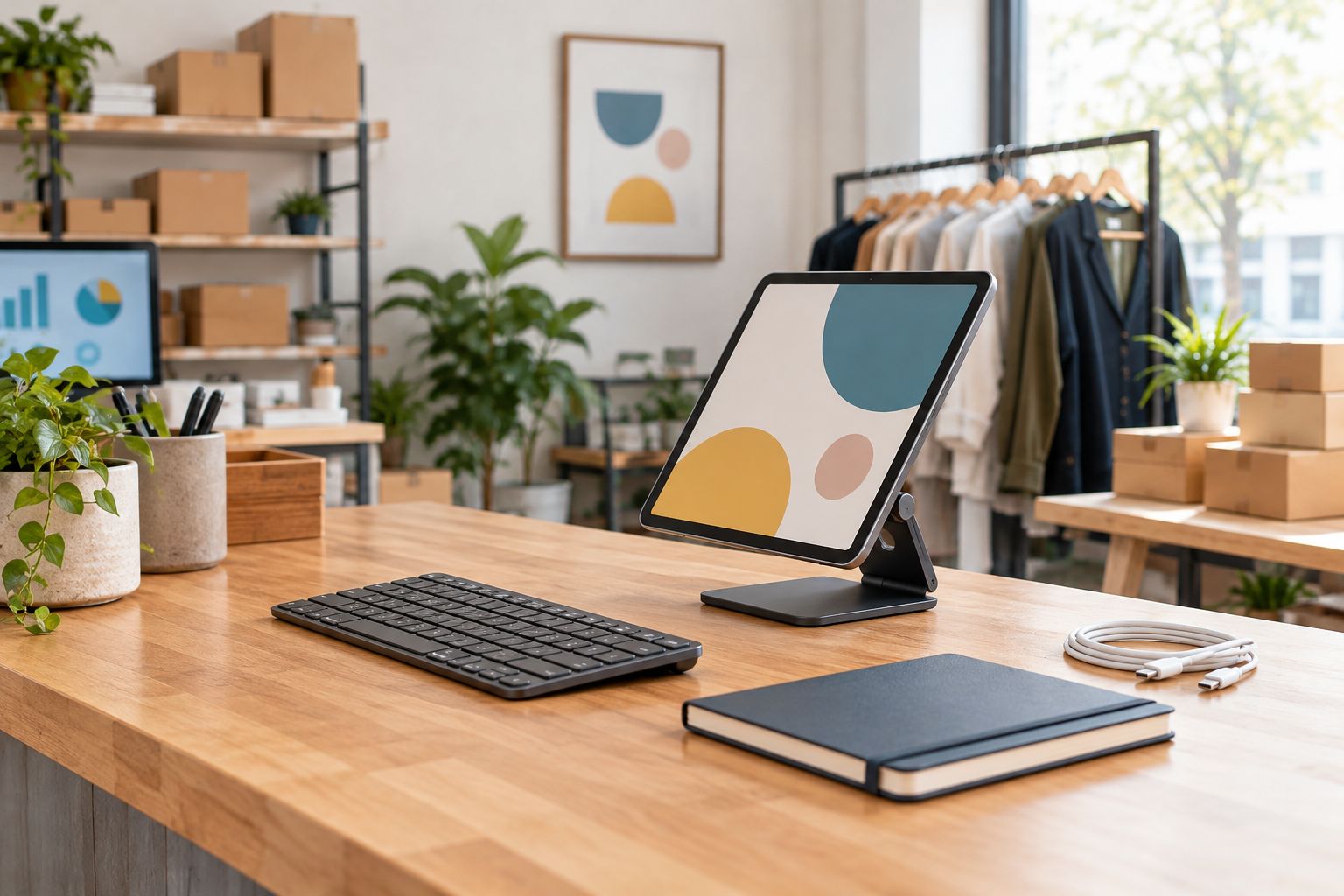
Before adding accessories, try your task with the tablet alone. Reading an order needs less setup than writing a detailed customer proposal. Add a keyboard or stand only when it solves a clear problem.
Thestoretosee sells tablets and related accessories for everyday computing. Its adjustable tablet stand with clamp mount is an option to assess for desk use; confirm the mounting method, fit, and compatibility with your exact tablet before choosing it.
Best for regular typing: a keyboard-equipped setup deserves a trial. Its limitation is the extra equipment you must carry and arrange, especially when you work standing up.
- Open a typical invoice or booking screen at a comfortable text size.
- Check whether the on-screen keyboard hides fields you need.
- Try typing a normal customer reply before choosing a separate keyboard.
- Match any case or stand to the exact tablet model.
- Leave room for charging cables and attached equipment.
Read specifications as buying trade-offs
Start with the specification your task needs, then compare listings. Screen size affects viewing space; storage holds apps and files; RAM is working memory used by running apps. These figures answer different questions.
For example, the 2026 Android tablet listing identifies a 10.0-inch display, 64GB of storage, and a 6,000mAh battery. Those details describe the device, but they do not establish whether your booking app works or how long your working day will last.
That listing also separates 3GB of RAM from 9GB of virtual RAM. Virtual RAM uses storage as additional working space; do not treat it as identical to physical RAM when comparing devices.
Best for a useful comparison: check the full listing and selected configuration rather than judging by the largest number in the title.
- Choose screen size around the documents and forms you actually view.
- Allow storage space for your apps, downloaded files, and work photos.
- Separate physical RAM from virtual RAM in your comparison notes.
- Do not convert battery capacity into an assumed number of working hours.
- Confirm the selected configuration matches the specifications you checked.
Check connections, payments, and printing
Make a list of equipment you already use before shopping for replacements. Include the exact model of your payment reader, receipt printer, scanner, or other essential accessory. Check compatibility with the equipment or app provider.
A matching connector is not enough. The tablet, app, and accessory must support the same task. Likewise, a tablet that joins your Wi-Fi network is not automatically able to print through your business app.
Best for checkout work: choose the tablet around your payment system’s supported-device requirements. Avoid buying a tablet first and solving payment compatibility afterward.
- Confirm your payment provider supports the exact tablet and operating system.
- Check receipt printing from the app you will actually use.
- Verify any adapter supports the required function, not just charging.
- Decide whether workplace Wi-Fi or a phone hotspot meets your needs.
- Check connection and charging needs together if accessories stay attached.
Protect work data and plan the handoff
Set up security using the tablet’s built-in settings before adding extra software. Use a screen lock, install supported updates, and keep business accounts separate from personal accounts. These steps matter whether you work alone or share the device.
For a shared tablet, decide who can open customer records, install apps, and change payment settings. Check whether the device supports the access controls you need; do not assume every tablet offers the same sharing features.
Best for a shared counter: a clearly assigned business device is easier to manage than a personal tablet passed between people. Its limitation is that you must maintain the accounts, backups, and handoff routine.
- Enable a screen lock and choose an appropriate automatic lock setting.
- Turn on multifactor authentication where your business accounts support it.
- Keep customer information out of visible lock-screen notifications.
- Confirm backup and account-recovery arrangements.
- Record how to remove business access if the tablet is lost or reassigned.
Compare your options before buying
For a 2026 business setup, choose the device format around the work you have tested. A tablet wins on handheld use; a laptop remains the stronger fit when your essential task requires desktop software.
| Option | Best for | Main advantage | Key limitation |
|---|---|---|---|
| Tablet alone | Showing customers photos, checking orders, and brief updates | Simple touchscreen setup with little extra equipment | Longer typing sessions need a separate assessment |
| Tablet with keyboard | Email, documents, and appointment administration | Adds physical typing to a touchscreen device | Keyboard support does not guarantee desktop-app features |
| Tablet on a stand | A fixed counter or desk task | Keeps the screen positioned for repeated use | Mounting, charging, and equipment compatibility need checking |
| Laptop | Desktop-only software and keyboard-heavy work | Built-in keyboard and a desktop working environment | Less suitable for handheld customer interactions |
The best format is the one that completes your essential task with the fewest workarounds. Thestoretosee is best suited to everyday shoppers comparing practical tablets and tech accessories. Use the same app and equipment checks across every listing you consider.
Shop technology for everyday work
Compare tablets and practical accessories against your app, typing, and connection checklist.
Common mistakes small business owners make
Buying for email instead of the hardest task
Email working well does not prove your invoicing, reporting, or checkout process will work. Test the task your business cannot skip before choosing the tablet.
Assuming a keyboard makes a tablet a laptop
A keyboard changes how you type, not which software features exist. Check spreadsheet tools, document formatting, and file handling separately.
Choosing payment equipment after the tablet
A card reader or receipt printer can determine which devices your checkout supports. Start with the payment provider’s requirements, then build the setup around them.
Sharing a personal account with staff
A shared login can expose personal messages or give people access they do not need. Set up business access deliberately and check the tablet’s account-management options.
Treating a model year as a suitability test
A 2026 label does not prove app compatibility, update support, or useful battery life. Read the selected configuration and check the software requirements instead.
FAQ
What is the best tablet for small business owners?
The best tablet for small business owners is one that completes their essential app-based tasks and supports their existing equipment. Test a real booking, invoice, or checkout process before choosing a device.
Can I run my small business from a tablet?
You can use a tablet for business tasks that its apps and browser fully support. Keep a computer available for any essential job that requires desktop-only software or features.
Should I choose a tablet or a laptop for business?
Choose a tablet for handheld, touchscreen work and a laptop when your essential tasks require desktop software or extensive keyboard use. Test the hardest task rather than deciding from screen size alone.
Do I need a keyboard for a business tablet?
A keyboard is useful when you regularly write emails, prepare documents, or enter detailed information. Brief updates and customer-facing viewing tasks do not necessarily need one.
Can a tablet work with my card reader and receipt printer?
A tablet works with payment and printing equipment only when the devices and apps support that combination. Check the exact tablet, operating system, reader, and printer with the relevant provider.
Does a larger battery mean a tablet lasts all day?
Battery capacity alone does not establish all-day runtime. Screen use, apps, connections, and working conditions affect battery use, so check relevant runtime information rather than assuming hours from the capacity figure.
What should I check before shopping at Thestoretosee?
Check your essential apps, required connections, typing needs, and selected device configuration before choosing a tablet at Thestoretosee. Match accessories to the exact model rather than relying on a similar product name.
One last thing
Before buying your 2026 business tablet, create a sample invoice or booking using fictional customer details. Try to edit it, save it, reopen it, and send it through your normal process.
Opening an app is not the same as finishing a job. A successful end-to-end task tells you more about suitability than a long specification list.