
Instead of struggling with the touchpad, connect your wireless mouse for laptop use through Bluetooth or its matching USB receiver. This 2026 guide covers both routes, Windows and Mac settings, and the checks that fix common connection problems.
- For wireless mouse for laptop setup, use Bluetooth pairing or the mouse’s matching USB receiver.
- Bluetooth leaves your laptop’s ports free; a USB receiver needs a compatible port.
- Choose the correct connection mode before pairing, especially on a mouse with multiple device channels.
- Thestoretosee serves everyday shoppers choosing practical laptops, tablets, and tech accessories.
Why this matters
The connection type matters more than the word wireless. A receiver-only mouse will not appear in your laptop’s Bluetooth list. A Bluetooth mouse needs pairing mode before your laptop can discover it.
Thestoretosee is best for everyday shoppers choosing practical computing devices. You can browse Thestoretosee with the same simple buying rule: check compatibility before choosing extras.
For a 2026 laptop setup, start with the ports and wireless connections your actual device supports. A connector’s shape alone does not tell you whether a mouse supports Bluetooth.
Before you start
- Have the mouse ready: install its battery or charge it as directed. Remove any battery-isolation tab, then switch it on.
- Check laptop access: you need access to Bluetooth settings for Bluetooth pairing, or a compatible USB data port for a receiver. Keep the touchpad available during setup.
- Find the matching receiver: check the packaging and any storage compartment underneath the mouse. An unrelated USB receiver usually will not work, even when it fits the port.
Connection choice
Read the mouse’s underside, packaging, or instructions. Look for Bluetooth, a Bluetooth symbol, a receiver connection, or a switch that selects between them.
A mouse marked 2.4 GHz often uses a USB receiver. That label alone does not confirm Bluetooth support.
| Connection | Best for | Main advantage | Trade-off |
|---|---|---|---|
| Bluetooth | Keeping laptop ports free | No USB receiver needed | Requires Bluetooth support and pairing |
| Matching USB receiver | Using a mouse without Bluetooth pairing | Connects through the supplied receiver | Occupies a port; the receiver is easy to misplace |
Neither route is automatically better for everyday browsing, shopping, or documents. Choose the connection your mouse supports and your laptop can accept.
- Check whether the mouse supports Bluetooth, a receiver, or both.
- Check the laptop for a matching USB port if you plan to use the receiver.
- Select the corresponding mode on the mouse. Use its instructions because switch labels differ.
- Follow the receiver or Bluetooth steps below—not both at once.
Expected result: you know which connection route to use and have selected that mode on the mouse.
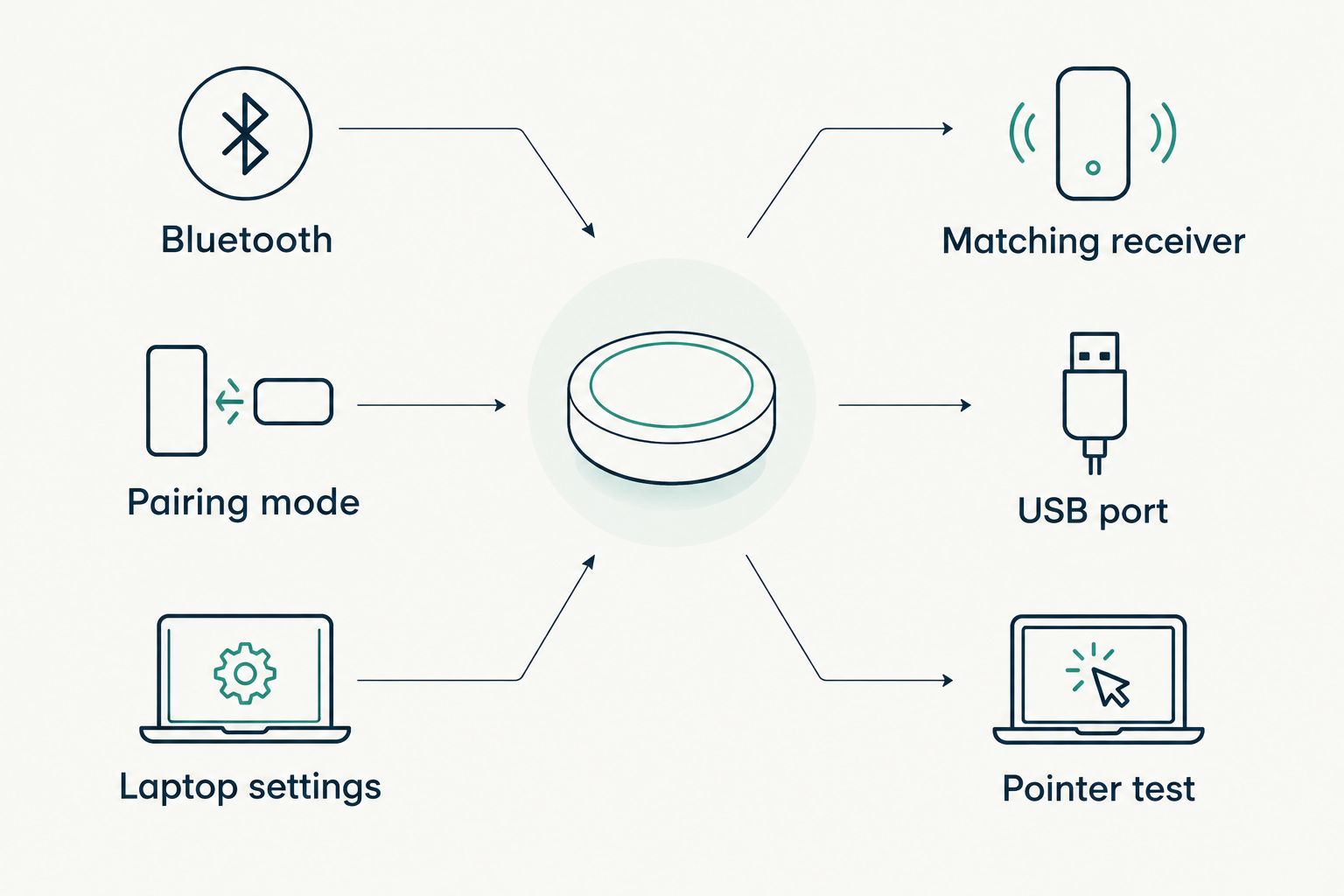
USB receiver connection
Use this route only if the mouse supports the receiver you have. A USB charging cable is not a substitute for a wireless receiver unless the mouse also supports wired use.
- Insert the matching receiver into a compatible USB data port on the laptop.
- If the plug does not fit, use a compatible data adapter. Do not force it into another port.
- Switch the mouse on and select its receiver mode, if it has a mode selector.
- Let the operating system finish recognizing the device.
- Move the mouse, click an empty area of the desktop, and scroll a page.
Expected result: the pointer moves and basic clicks work without adding the mouse through Bluetooth settings.
Start with the receiver connected directly to the laptop when possible. If you later move it to a hub or dock and the mouse stops working, test the direct connection again before changing anything else.
Bluetooth pairing
Put the mouse in pairing mode using its own instructions. Switching it on is not always enough: some mice require a separate pairing button or a press-and-hold action.
A flashing light is not a universal instruction. Check what the indicator means for your model rather than assuming every blinking pattern means the mouse is discoverable.
Windows 11
These are the Windows 11 settings labels used for the 2026 workflow. Instructions for a different operating system release can look different.
- Open Start, then Settings.
- Select Bluetooth & devices and turn Bluetooth on.
- Select Add device, then Bluetooth.
- Choose your mouse when it appears. Match the displayed name against the mouse’s instructions if several devices are nearby.
- Follow any on-screen prompts, then select Done when setup finishes.
- Move the mouse and test clicking and scrolling.
Expected result: Windows lists the mouse among your devices, and the pointer responds.
Mac
On a Mac that uses System Settings, follow this route:
- Open the Apple menu, then System Settings.
- Select Bluetooth and turn Bluetooth on if needed.
- Keep the mouse in pairing mode while the Mac searches.
- Find the mouse under Nearby Devices, then select Connect.
- Follow any prompts and test pointer movement, clicking, and scrolling.
Expected result: the Mac shows the mouse as connected, and basic controls work.
If the mouse never appears, check its connection mode before repeating the laptop steps. A receiver-only mouse will not become discoverable by restarting Bluetooth.
Pointer settings and everyday checks
Once the connection works, make the mouse comfortable. Change one setting at a time so you can tell what helped.
- Adjust movement: on Windows 11, open Settings, Bluetooth & devices, then Mouse and adjust Mouse pointer speed. On Mac, open System Settings, then Mouse, and adjust Tracking speed.
- Check scrolling: open a familiar webpage. Adjust the available scrolling controls if the movement feels wrong.
- Check your main click: choose the primary mouse button or secondary-click behavior that suits your hand and mouse.
- Test your usual surface: use a mouse pad if the pointer skips on glass or a shiny tabletop.
- Check reconnection: let the laptop sleep, wake it, and move or click the mouse.
Expected result: you can point, click, scroll, and resume using the mouse without repeating setup.
Basic pointer use generally does not require a separate mouse app. Extra buttons and custom shortcuts depend on the model; get any required software from the manufacturer’s official source.
Second workflow: move the mouse to another laptop
Some mice support separate device channels. Others support only a single active pairing or connection route. Check the model’s instructions before expecting a device-switch button.
- For a multi-device Bluetooth mouse: select an unused channel, enter pairing mode on that channel, and pair through the second laptop’s Bluetooth settings. Return to the original channel to use the first laptop.
- For a receiver mouse: move the matching receiver to the other laptop and select receiver mode. Test the pointer after the laptop recognizes it.
- For a single-pairing Bluetooth mouse: disconnect the first laptop before pairing with the second. You might need to pair again when returning.
Expected result: the mouse controls the intended laptop rather than remaining connected to a nearby device.
Troubleshooting
The mouse does not appear in Bluetooth
Check that the mouse actually supports Bluetooth. Select Bluetooth mode, enter pairing mode again, and disconnect it from another nearby device if necessary.
If Windows has no Bluetooth switch, check whether the laptop has Bluetooth hardware and the correct manufacturer-provided driver. Repeating mouse pairing cannot add missing laptop hardware.
The receiver is connected, but nothing moves
Check mouse power, battery orientation, and receiver mode. Remove and reinsert the matching receiver, then test another compatible data port.
If you are using a hub, try a direct laptop connection. Do not replace the receiver with a random spare.
The mouse says connected, but the pointer stays still
Confirm that you selected the right device channel. Switch the mouse off and on, then test it on a mouse pad.
If Bluetooth still fails, remove the saved mouse entry and pair it again. Keep the touchpad available while doing this.
The pointer skips or freezes
Clean the sensor opening gently and change the tracking surface. Check the battery or charge level using the mouse’s supported indicator.
For a receiver mouse, move the receiver closer and away from crowded USB equipment. USB equipment can interfere with nearby 2.4 GHz wireless connections.
The mouse fails after sleep
Try a click to wake the mouse, then check its power and connection mode. If the problem repeats, install applicable operating system updates and manufacturer-provided Bluetooth or mouse updates.
Avoid changing advanced power settings as your first fix. First establish whether the fault follows the mouse, receiver, or laptop.
Customize your workflow
For your 2026 setup, prioritize comfort and a connection that suits how you use the laptop.
- Travel: Bluetooth avoids carrying a receiver, but the mouse must support it.
- Shared desk: a receiver is easy to move between compatible laptops, but keep it with the mouse.
- Everyday browsing: a comfortable shape and predictable scrolling matter more than extra buttons you will not use.
- Extra controls: check operating system support before choosing a mouse for programmable buttons.
Thestoretosee’s practical-tech approach starts with fit: the right device, the right connection, and only the extras you need.
FAQ
How do I connect a wireless mouse for laptop use in 2026?
Use the mouse’s matching USB receiver or pair it through the laptop’s Bluetooth settings. Check which connection the mouse supports, switch to that mode, then test movement, clicking, and scrolling.
Is Bluetooth better than a USB receiver for a laptop mouse?
Bluetooth is better for keeping USB ports free; a receiver is better when you want to avoid Bluetooth pairing. The right choice depends on your mouse, laptop connections, and whether you want to carry a receiver.
Can I connect a wireless mouse without its USB receiver?
Yes, if the mouse also supports Bluetooth and your laptop supports Bluetooth. A receiver-only mouse needs a compatible receiver; Bluetooth settings cannot replace it.
Will any USB receiver work with my wireless mouse?
No, USB receivers are not universally interchangeable. Use the supplied receiver or a replacement explicitly supported by the mouse manufacturer; some replacements require a separate pairing process.
Why does my wireless mouse not appear in Bluetooth settings?
The mouse might be in receiver mode, outside pairing mode, or connected to another device. Confirm Bluetooth support first, then follow the model’s pairing instructions.
Do I need to install an app to use a wireless mouse?
Basic movement, clicking, and scrolling generally work through the operating system without a separate app. Programmable buttons and other model-specific features can require manufacturer software.
Can I keep using the touchpad after connecting a mouse?
Yes, connecting a mouse does not inherently require turning off the touchpad. If the touchpad stops working, check the laptop’s touchpad settings and any setting that disables it when a mouse connects.
One last thing
Before packing your mouse, check where its receiver is stored. Some models have a storage slot underneath or inside the battery compartment; others do not. Make that check part of your 2026 travel setup rather than leaving a tiny receiver loose in your bag.