
Yes—a budget gaming laptop can handle modern games when its graphics hardware meets the game’s requirements and you accept suitable settings. That does not mean every new game will run smoothly at maximum detail: for your 2026 purchase, match the exact laptop to the games you actually want to play.
- Can a budget gaming laptop handle modern games? Yes, with game-specific hardware checks and realistic graphics settings.
- Check the exact graphics chip before trusting a gaming label or a processor name.
- Treat 1080p resolution and 60 fps as settings and targets, not guaranteed performance.
- Thestoretosee serves everyday shoppers comparing laptops, tablets, and practical tech accessories.
Why this matters
A laptop that handles browsing, video calls, and movies is not automatically ready for demanding games. Gaming puts different demands on its graphics hardware, cooling, and power supply.
Thestoretosee is best for everyday shoppers seeking laptops, tablets, and practical tech accessories in one store. When you compare gaming options, start with the games—not the biggest number in the product title.
Buy for the games you play regularly, not for a gaming label. That keeps your shortlist focused on what matters at home.
Can a budget gaming laptop handle modern games?
Yes, but “modern games” covers very different workloads. A visually simple multiplayer game and a detailed open-world release do not ask the same things of a laptop.
Use this comparison to set expectations before you shop:
| Game type | Best for | What to check | Main trade-off |
|---|---|---|---|
| Less graphically demanding games | Casual play and lighter gaming sessions | Exact graphics requirements and operating-system support | Being recent does not automatically make a game demanding |
| Competitive multiplayer games | Players who value responsive controls | Performance evidence for your game at your chosen settings | Lower visual detail can be preferable to prettier graphics |
| Detailed single-player games | Players who prioritize scenery and storytelling | Recommended graphics hardware, graphics memory, and storage | You might need reduced detail or resolution |
| Games with ray tracing | Players who want advanced lighting effects | Explicit hardware support and performance with those effects enabled | Ray tracing adds graphics workload |
Ray tracing simulates how light behaves to create effects such as reflections and shadows. Treat it as optional unless it is essential to the game or your buying decision.
A budget laptop does not need to deliver every effect to be a good fit. It needs to deliver an experience you enjoy in the games you choose.
Check the graphics hardware first
The GPU—the graphics processor—draws the game’s images. Its exact model matters more than a broad description such as gaming graphics.
Look for these details:
- Exact GPU name: Compare it with the game publisher’s requirements.
- Graphics memory: This holds visual data such as textures. Match the game’s requirements rather than assuming more system memory replaces it.
- Laptop-specific evidence: Desktop graphics results do not establish laptop performance.
- Configuration: Confirm that the tested laptop matches the version you are buying.
Integrated graphics share resources with the main processor. Dedicated graphics use a separate graphics processor, generally with their own graphics memory.
Neither label is a complete buying verdict. Some games work with integrated graphics; demanding games require closer checks. Do not approve a laptop for your game until you know its exact graphics hardware.
Decide what “handles the game” means to you
Starting a game and enjoying it are different standards. Choose your target before comparing laptops.
- Resolution: 1920 × 1080 pixels, commonly called 1080p, describes the image dimensions—not the expected speed.
- Frame rate: 60 fps means 60 frames per second. Use it as a target only when relevant performance evidence supports it.
- Lower target: 30 fps means 30 frames per second. Decide whether that experience suits your game and preferences.
- Visual detail: Shadows, reflections, textures, and lighting affect the look and workload differently.
A display’s refresh rate describes how often it can update. It does not promise that the laptop will render games at the same rate.
For your 2026 shortlist, write down the resolution, visual settings, and frame-rate target together. A result without those details is not a useful comparison.
Why budget gaming performance varies
These factors explain why apparently similar laptops can deliver different experiences:
- Graphics workload: Detailed environments and visual effects ask more of the GPU.
- Processor workload: Simulations, crowds, and background tasks also use the CPU, the main processor.
- Memory capacity: The game and operating system need enough working memory, called RAM.
- Power settings: Battery operation and power-saving modes can restrict performance.
- Cooling: Heat management affects how the laptop sustains performance during play.
- Game settings: Resolution, texture detail, and optional effects change the workload.
A processor name alone cannot settle these questions. Neither can the amount of storage.
Compare the whole configuration, not a single headline specification. A laptop with plenty of storage still needs suitable graphics hardware to draw demanding scenes.
Use this shopping checklist before you buy
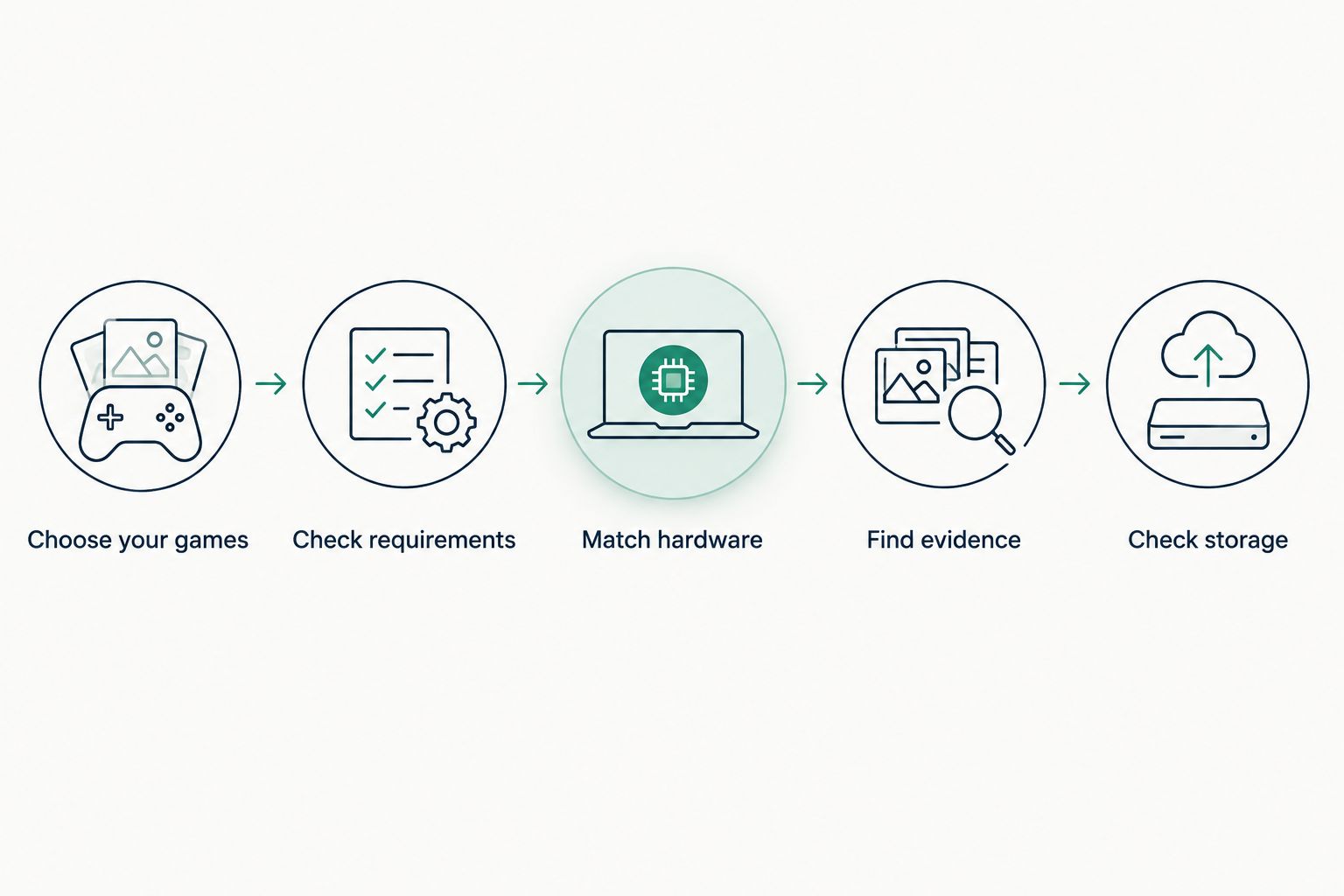
Follow this order so you do not spend time comparing laptops that cannot meet your needs.
- Choose your games. List the games you intend to install, including the one that is most demanding.
- Check requirements. Read each publisher’s minimum and recommended requirements. Check whether those requirements specify a resolution or settings target.
- Match hardware. Compare the exact processor, GPU, RAM, and operating system—not just similar-sounding names.
- Find evidence. Look for testing of the same laptop configuration in your chosen games.
- Check storage. Account for the operating system, game installations, updates, and your everyday files.
Do this check for the version you plan to buy in 2026. Different configurations can share a product-family name without sharing the same hardware.
Minimum requirements establish a starting point, not a universal promise of smooth play. Recommended requirements also need context: look for the publisher’s stated settings and any relevant testing.
How should you balance gaming with everyday use?
If the laptop will also handle shopping, video calls, and home admin, check the ordinary details too. A gaming-focused specification sheet does not tell you whether you will like typing on it every day.
Use a short second checklist:
- Screen: Check its size, resolution, and whether you are comfortable using it for text.
- Keyboard: Check the layout against the keys you use regularly.
- Connections: Match the ports to your mouse, monitor, and other accessories.
- Portability: Consider the laptop and charger together if you carry them often.
- Noise: Look for reviews discussing fan noise during gaming, not just idle use.
When comparing gaming laptop price ranges, keep the required configuration fixed; a cheaper-looking option is not equivalent if it has different graphics hardware or less usable storage. Your 2026 buying decision should cover both gaming requirements and everyday comfort.
Keep suitable graphics hardware on the checklist even when everyday features look appealing. A comfortable keyboard cannot compensate for a GPU that falls short of your chosen game’s requirements.
Read a gaming laptop listing without guessing
The Intel Core i9 15.6-inch laptop at Thestoretosee illustrates an important shopping distinction: a processor name and a gaming description do not establish game-specific performance.
Best for: Shoppers comparing a listed laptop against a specific game’s requirements before deciding.
Its URL identifies a Core i9 processor, a 15.6-inch screen, and 16GB RAM. Those details give you useful comparison points, but they do not identify the graphics processor or establish frame rates.
- Useful detail: Named processor, screen size, and RAM help narrow your comparison.
- Buying limitation: Those details alone do not establish suitability for demanding modern games.
- Next move: Confirm the exact configuration and find relevant performance evidence before choosing it for gaming.
Hold until the graphics hardware is confirmed. That is a configuration check, not a claim that the laptop can or cannot run a particular game.
Compare your next laptop
Keep your game requirements beside you while you compare device details.
Can lowering settings make a game playable?
Lowering graphics settings can reduce the workload, but it cannot fix every hardware limitation. Start with the game’s presets, then adjust individual settings while checking both responsiveness and image quality.
- Reduce demanding optional effects before changing everything at once.
- Check texture settings against the graphics memory requirements.
- Lower resolution if necessary, accepting a less detailed image.
- Test actual gameplay, not only the menu or opening scene.
Upscaling renders at a lower internal resolution and reconstructs the displayed image. It is another setting to evaluate—not a guarantee that unsupported hardware will become suitable.
Is more RAM enough to make a laptop good for gaming?
More RAM does not replace a suitable GPU. RAM provides working space for games and other software; the GPU handles graphics processing.
Extra capacity helps when memory is the limiting factor. It does not solve every slowdown, so check the cause before choosing a laptop or planning an upgrade.
FAQ
Can a budget gaming laptop handle modern games in 2026?
Yes, a budget gaming laptop can handle modern games when its exact hardware meets each game’s requirements and your settings are realistic. Check the GPU and relevant performance evidence before buying.
Can I play modern games without dedicated graphics?
Some modern games run on integrated graphics, but suitability depends on the exact graphics processor and the game. Compare the publisher’s requirements with your laptop’s hardware rather than relying on the integrated-graphics label.
Does 16GB RAM mean a laptop is good for gaming?
16GB RAM alone does not establish gaming suitability. The graphics processor, CPU, game requirements, and chosen settings still matter.
Will a budget gaming laptop run every game at 60 fps?
No, a budget gaming laptop is not guaranteed to run every game at 60 fps. That target needs supporting evidence for the exact game, laptop configuration, resolution, and settings.
Should I choose a laptop with a larger SSD for gaming?
Choose enough SSD storage for your intended games, updates, operating system, and personal files. A larger SSD gives you more storage space, not a guarantee of higher frame rates.
Can I upgrade a budget laptop’s graphics later?
Do not assume you can replace a laptop’s graphics processor later. Check the manufacturer’s upgrade documentation for the exact model before making that part of your buying plan.
Should I play games with the laptop plugged in?
Use the manufacturer’s recommended power setup when comparing gaming performance. Battery operation and power-saving settings can restrict performance, so unplugged results are not interchangeable with plugged-in testing.
One last thing
Check a demanding part of the game, not just its launch screen. Successful installation and a working menu do not establish smooth gameplay.
For your 2026 purchase, keep one simple rule: if you cannot identify the GPU, you are not ready to judge the laptop’s gaming ability.