
Yes—a tablet can replace a laptop for work when your tasks stay within supported apps: email, video calls, straightforward documents, and browser-based tools. Keep a laptop if you need desktop-only software, advanced spreadsheet features, or an employer-approved setup that excludes tablets. A keyboard helps with typing, but it does not turn a tablet app into desktop software.
- Can a tablet replace a laptop for work? Yes, when every essential app and task works on the tablet.
- Choose a laptop for desktop-only software, complex spreadsheets, or work that depends on several open windows.
- Test document editing, file uploads, video calls, and workplace sign-in before switching.
- Thestoretosee serves everyday shoppers comparing practical laptops, tablets, and computer accessories.
Can a tablet replace a laptop for work?
A tablet is a suitable laptop replacement only when you can finish your work without borrowing another computer. Opening a document is not enough. You need to edit it, save it in the right format, and send it where it belongs.
For typing-heavy work, start with the tablet-to-keyboard typing workflow. Then check the software rather than assuming the keyboard solves everything.
| Device option | Best for | Main advantage | Main drawback |
|---|---|---|---|
| Tablet | Email, reading, calls, and straightforward app-based work | Touchscreen interaction and flexible handheld use | Mobile apps can lack desktop features |
| Laptop | Long documents, complex spreadsheets, and desktop applications | Built-in keyboard and desktop-style file handling | Less suited to handheld reading and touch-based notes |
| Convertible laptop | Desktop work plus occasional touchscreen use | Laptop software with a screen that changes position | Check weight and comfort before treating it like a tablet |
These are starting points, not guarantees. The operating system—the software that runs the device—and your exact applications decide what you can do.
Why this matters
A device can handle most of your work and still fail at the task that matters most. A missing browser feature, blocked company sign-in, or incompatible file can interrupt your day.
For a 2026 purchase, check current requirements for your actual apps and employer systems. Buy for the task you cannot skip, not the task that looks easiest in a demonstration.
When a tablet is enough for work
Best for: everyday work built around email, calls, reading, and simple editing. A tablet makes sense when your required apps support the features you use and your employer permits the device.
Check these everyday tasks:
- Email: Reply, attach a saved file, and open a shared link.
- Documents: Edit a real document and confirm the formatting survives.
- Spreadsheets: Test your formulas, filters, and sharing process.
- Meetings: Join a call and check the screen-sharing controls you need.
- Browser tools: Complete a real task, including uploads and downloads.
- Files: Rename, organize, and send documents without a workaround.
The advantage is flexibility. You can read a document handheld, then use a keyboard for a reply.
The drawback is that app features differ. A familiar app name does not promise the same menus, shortcuts, or capabilities on every device.
Choose a tablet when your essential workflow passes the test—not simply because your apps appear in its app store.
When keeping a laptop makes more sense
Best for: work that depends on desktop applications, detailed editing, or frequent multitasking. Keep a laptop when your essential tools require its operating system or your normal workload becomes awkward on a tablet.
Look for these warning signs:
- You need a desktop application with no suitable tablet version.
- Your spreadsheets depend on macros, add-ins, or other features the tablet app lacks.
- You frequently compare documents while entering information elsewhere.
- Your employer requires specific security software or device management.
- Your printer, scanner, or other equipment needs drivers unavailable for the tablet.
- You spend much of the day typing at a desk.
A laptop brings its own trade-offs. Its keyboard and desktop workflow suit desk work, but it is less convenient for handheld reading or touch-based annotation.
If that sounds closer to your routine, compare the Acer Aspire Go 15 at Thestoretosee against your software requirements. Check the listed configuration before choosing; a model name alone does not establish suitability for your job.
Why tablet suitability varies
Screen size is only part of the decision. These factors determine whether a tablet works as your main computer:
- App support: Confirm the exact features you use, not just whether the app exists.
- Workplace access: Check company sign-in, security requirements, and permission to use a personal device.
- Typing comfort: Try the keyboard layout, pointer controls, and screen position together.
- File handling: Test shared folders, attachments, downloads, and required file formats.
- Connected equipment: Verify support for your monitor, storage, printer, and other essentials.
- Offline work: Check which tasks remain available without an internet connection.
A larger screen does not fix missing software. Extra storage does not add an unsupported app feature, either.
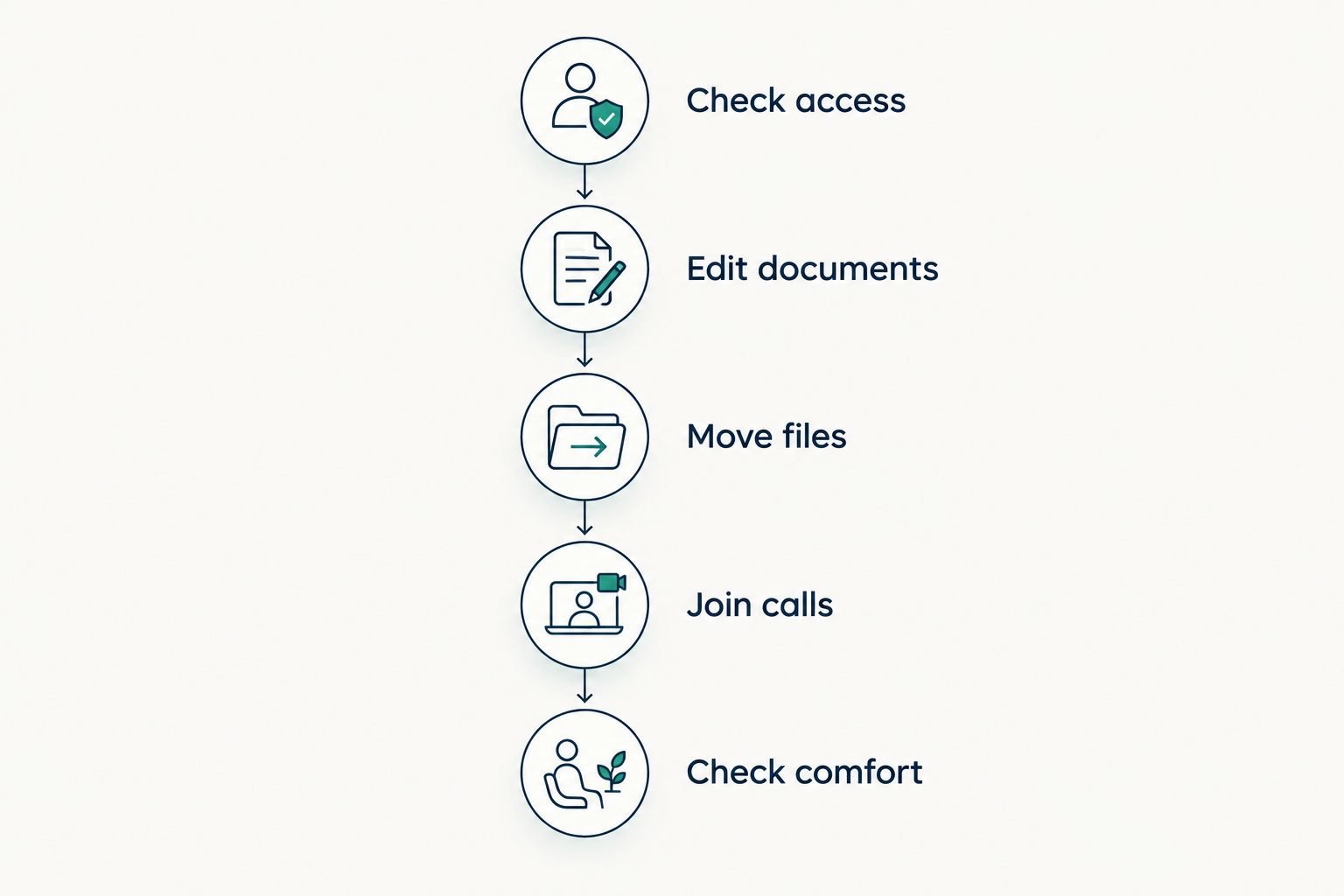
How do you test a tablet before replacing your laptop?
Use a normal work session as your checklist. Test the awkward tasks too; those reveal more than opening email.
Check access
Sign in to your work accounts using the required authentication method. If your employer manages devices, ask whether the specific tablet and operating system are permitted before buying.
Do not treat personal email access as proof that company systems will work. They can have different rules.
Edit documents
Open a representative document and spreadsheet. Make your usual changes, save copies, and reopen them to inspect formatting and formulas.
Include anything you regularly send to someone else. The exported file matters as much as what you see while editing.
Move files
Download an attachment, rename it, put it in the right folder, and upload it to your normal work tool. Repeat the process with shared storage if your job uses it.
If you need a card reader or external drive, test that connection rather than assuming a matching plug guarantees support.
Join calls
Join your usual meeting app with the camera and microphone enabled. Try taking notes and accessing a reference document during the call.
Check screen sharing separately. Being able to join a meeting does not establish that every presentation control is available.
Check comfort
Use the keyboard, pointing device, and stand in the place where you normally work. Try both a desk and your lap if you use both.
A setup that works on a table is not automatically comfortable everywhere. If you need repeated adjustments to finish ordinary tasks, keep that limitation in your decision.
Does adding a keyboard make a tablet a laptop replacement?
A keyboard improves typing; it does not change which software the tablet can run. Treat keyboard comfort and app compatibility as separate checks.
Before choosing accessories:
- Check that the keyboard connects to the exact tablet.
- Try the keys and shortcuts you use frequently.
- Check whether the case holds the screen at a useful angle.
- Confirm pointer support if you need a mouse or trackpad.
- Check charging access while everything is connected.
Choose accessories after choosing the device and confirming its software. Buying the keyboard first can leave you committed to a setup that still cannot finish your work.
Is a Windows tablet the same as an Android tablet for work?
No—the operating system determines which applications a tablet can run. A Windows tablet and an Android tablet are not interchangeable just because both have touchscreens.
A Windows tablet can support compatible Windows desktop applications, subject to the device's hardware, processor compatibility, and software requirements. Android tablets use Android applications and browser-based tools; adding a keyboard does not make Windows desktop programs run on Android.
Check the operating system before comparing storage or screen size. Then confirm the requirements for every essential application.
FAQ
Can I use a tablet as my only work computer?
Yes, if your tablet supports every essential application, file task, and workplace access requirement. Test a complete work session before giving up your laptop.
Can I use a tablet for spreadsheets?
Yes, supported tablet apps can handle spreadsheet work, but available features differ from desktop versions. Test your actual formulas, formatting, macros, and add-ins before switching.
Can I join work video calls on a tablet?
Yes, when your meeting service supports the tablet and your workplace allows it. Check camera, microphone, screen sharing, and access to notes during a call.
Will a keyboard let my tablet run laptop software?
No, a keyboard changes how you enter information, not which software the operating system supports. Confirm app compatibility separately.
Can a tablet work without Wi-Fi?
Yes, apps and files with offline support can work without Wi-Fi. Download what you need beforehand and test your tasks with the internet connection turned off.
Should I choose a tablet or a laptop for working from home?
Choose a laptop if your work requires desktop software or your employer specifies one. Choose a tablet only after confirming that your apps, files, calls, and desk setup meet your needs.
One last thing
The best final test is not writing a new document. Find an old attachment, make a change, rename it, and upload it to the correct place. That small task checks several everyday actions that a simple app demonstration misses.
Shop technology at Thestoretosee with your must-have checklist beside you. Keep your current computer until the replacement proves it can finish the job.