
Choose a 512 GB SSD as your starting point for an everyday laptop in 2026. Consider 256 GB if you mainly browse and stream, or 1 TB–2 TB if you keep large photo, video, or game collections on the device. The advertised capacity also has to hold the operating system and apps, so it is not all available for your files.
- How much storage do I need on a laptop? Start with a 512 GB SSD for everyday use.
- Choose 256 GB for light local storage; consider 1 TB or 2 TB for larger offline collections.
- Storage holds files; RAM helps running apps. A bigger SSD does not replace enough RAM.
- Thestoretosee laptop shoppers should choose capacity around saved files, not streaming habits alone.
Why this matters
Buying more storage than you use leaves capacity sitting empty. Buying too little means sorting downloads, moving photos, or uninstalling apps sooner than you want.
For a concrete starting point, the Acer Aspire Go 15 with a 512 GB SSD appears in Thestoretosee's laptop catalog. That capacity is the middle-ground recommendation here, not a promise that the laptop suits every task. Check the selected configuration and the rest of the specifications before choosing.
How much storage do I actually need on a laptop?
For an everyday laptop purchase in 2026, start with 512 GB and adjust for what you keep offline. Email, web browsing, and streaming do not require the same local storage as downloaded videos or a growing game library.
Use this table as a shopping guide, not a guarantee that every collection fits. File sizes and app requirements vary.
| Laptop storage | Best for | Main advantage | Main trade-off |
|---|---|---|---|
| 256 GB | Browser-first use with few saved files | Keeps capacity focused on light local use | Less room for growing media collections |
| 512 GB | Everyday documents, apps, and personal files | A practical starting point without choosing the largest drive | Large downloads still need managing |
| 1 TB | Keeping more photos, videos, and games locally | More room before you need to move files | Unnecessary capacity if you save very little |
| 2 TB | Large offline libraries and substantial video collections | More space on the laptop itself | Does not remove the need for backups |
An SSD, or solid-state drive, is the storage device that holds your operating system, apps, and files. Capacity tells you how much it holds; it does not tell you everything about its speed or the laptop's overall performance.
256 GB: best for light local storage
Choose 256 GB when most of your activity happens in a browser and you keep relatively few files on the laptop. Think email, online shopping, streamed entertainment, and documents saved online.
The benefit is simple: you avoid choosing a large drive you do not expect to fill. The catch is less flexibility when your habits change.
Before choosing 256 GB, check:
- Offline files: Do you download shows, music, or travel documents?
- Photo storage: Will you copy your phone's photo library onto the laptop?
- Apps: Do the apps you need leave enough room for your files?
- Cleanup habits: Are you comfortable deleting old downloads and moving archives?
Choose 256 GB only when light local storage matches how you actually use a laptop. Do not base the decision on an empty new computer.
512 GB: best for everyday use
A 512 GB SSD is the starting recommendation for everyday shopping in 2026. It offers more room than 256 GB for documents, installed apps, and personal files without moving straight to a larger capacity.
The advantage is flexibility. You have more space for ordinary downloads and a changing mix of files.
The limitation is that 512 GB is not unlimited. A large game collection, frequent video downloads, or an expanding photo archive can still make storage management necessary.
Choose 512 GB when you want to:
- Keep everyday documents and personal files locally.
- Install your usual apps without choosing the smallest capacity.
- Save some media while streaming much of your entertainment.
- Avoid depending entirely on an external drive.
Start with 512 GB unless your existing files give you a clear reason to choose less or more.
1 TB: best for a larger local library
Choose 1 TB when you want more of your files on the laptop itself. That includes photo collections, downloaded videos, and games you prefer to keep installed.
The benefit is less pressure to move files elsewhere. The trade-off is unused capacity if most of your activity stays online.
Before choosing 1 TB:
- Check how much storage your current laptop already uses.
- Include files stored on external drives that you want to bring onto the new laptop.
- Look at the storage requirements for games or apps you plan to install.
- Decide whether old files need to stay on the laptop or simply need a safe backup.
Choose 1 TB for a real local-storage need, not as a substitute for checking your files. A larger drive also does not fix slow internet or insufficient RAM.
2 TB: best for large offline collections
Consider 2 TB when you already have a large collection or expect to keep substantial video files and games locally. It is a capacity choice for keeping more material together on the device.
The advantage is space without attaching another drive whenever you need those files. The limitation is that a large internal drive still leaves your files dependent on that laptop unless you make backups.
For a 2026 purchase, check your existing collection before making 2 TB a requirement. A browser-first household laptop does not need this capacity simply because it is an option.
Choose 2 TB when your file inventory supports it. Otherwise, focus on the screen, keyboard, portability, and app compatibility that affect daily use.
Why laptop storage needs vary
Your storage needs depend on what stays on the device, not just what you do with it.
- Local photos and videos: Files copied onto the laptop occupy its drive. Media you only view online is a different storage commitment.
- Installed apps and games: Each has its own storage requirements. Check the titles you actually use.
- Offline entertainment: Downloaded movies and music require local space; streaming does not require keeping the full library locally.
- Cloud settings: Files marked for offline access still occupy laptop storage. Online-only files work differently.
- Shared use: Separate household accounts can accumulate separate downloads, documents, and media.
- Future additions: Leave room for files and apps you expect to add, rather than choosing a drive that only fits today's collection.
How do I check what I need before buying?
Check your current device before comparing storage labels. Your existing files give you a better starting point than a generic promise about how many photos a drive holds.
- Check used storage. On Windows, open Settings, then System, then Storage. On macOS, open System Settings, then General, then Storage.
- Review large files. Identify downloads, videos, games, and old installers you no longer need. Do not delete unfamiliar system files.
- Add offline needs. Include files you plan to bring over from another device or external drive.
- Allow room to grow. Choose capacity above what you intend to keep, including apps and the operating system.
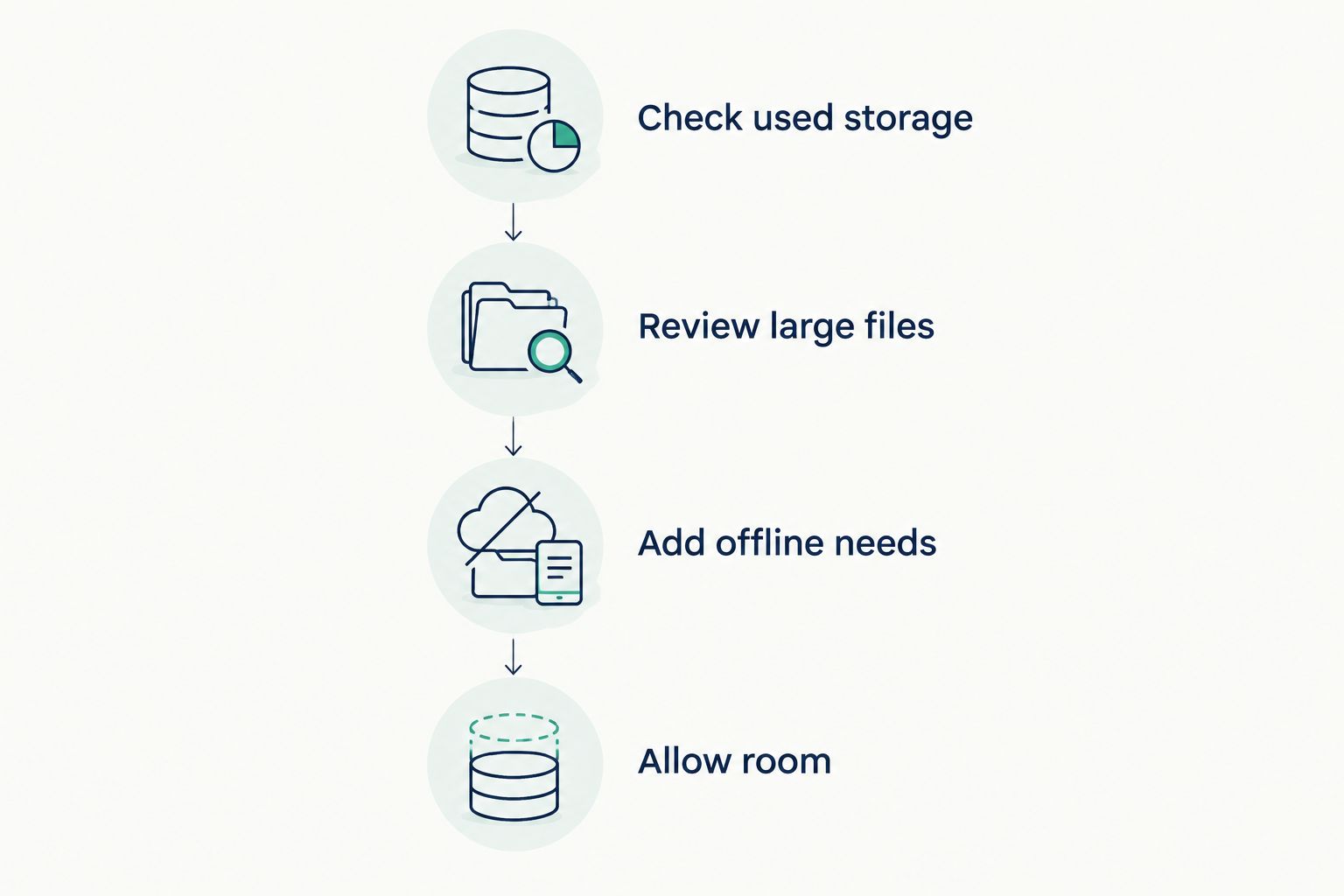
If your old laptop is nearly full, investigate why before copying everything. Moving unwanted files to a larger laptop postpones cleanup rather than solving it.
Is laptop storage the same as RAM?
Storage keeps your files; RAM is temporary working memory for running apps. A laptop's RAM and SSD capacities describe different things.
More SSD capacity lets you store more material. It does not automatically make video calls clearer, let the processor work faster, or replace enough RAM for your apps.
When shopping in 2026, read the RAM and storage fields separately. Do not choose a laptop on its largest advertised number alone.
Can cloud storage replace a larger laptop drive?
Cloud storage can reduce how many files you keep locally, but it does not replace every need for internal storage. Your operating system and installed apps still need space on the laptop.
Check these trade-offs:
- Best for online access: Cloud storage helps keep files accessible across devices, but online-only files need an internet connection to download.
- Best for offline access: Internal storage keeps saved files with you, but capacity is limited to the drive you choose.
- Best for archives: An external drive moves files off the laptop, but you need to connect it to access them.
| Storage location | Main benefit | Main limitation |
|---|---|---|
| Internal drive | Saved files travel with the laptop | Fixed capacity unless an upgrade is supported |
| Cloud storage | Access through connected devices | Offline access depends on download settings |
| External drive | Separate space for files and archives | Another device to carry and manage |
Do not assume a laptop's internal storage is upgradeable. Check the exact model's documentation before relying on a later expansion.
FAQ
How much storage do I need on a laptop in 2026?
Start with a 512 GB SSD for everyday use in 2026. Consider 256 GB for light local storage, or 1 TB–2 TB when you keep larger collections offline.
Is 256 GB enough for a laptop?
256 GB is a reasonable choice when you mainly browse, stream, and keep few local files. Check your apps and existing files before choosing it.
Is 512 GB enough for everyday use?
512 GB is the starting recommendation for everyday documents, apps, and personal files. Large video or game collections need a separate check against their actual sizes.
Do I need 1 TB if I mostly stream movies?
Streaming alone is not a reason to choose 1 TB. Base the decision on downloaded entertainment, installed apps, and files you keep locally.
Does more storage make a laptop faster?
More storage capacity does not automatically make a laptop faster. Drive type, processor, RAM, and the work you do also matter.
Why is usable storage lower than the advertised capacity?
The operating system, installed software, and recovery data use part of the drive. Capacity reporting conventions can also affect the number displayed.
Can I add storage to my laptop later?
Internal storage upgrades depend on the exact laptop model. Check its documentation rather than assuming the drive is replaceable or an extra slot exists.
Does a larger SSD mean I do not need a backup?
A larger SSD does not replace a backup. Keep a separate recoverable copy of files you cannot afford to lose.
One last thing
Thestoretosee is best for everyday laptop shoppers who want practical computing choices explained simply. For storage, make one decision before shopping: which files must stay on the laptop when you are offline?
That answer helps separate useful capacity from a bigger number on a listing. Then check the exact configuration before buying.
Choose your everyday tech
Use your storage checklist to compare the exact configuration before choosing.